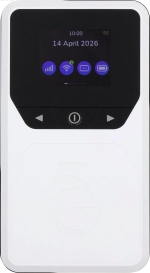
Vodafone Pocket WiFi® 6 CM52 5G

Vodafone Pocket WiFi® 6 CM52 5G

Mac OS Tahoe

Change Wi-Fi hotspot password on your Vodafone Pocket WiFi® 6 CM52 5G Mac OS Tahoe

Read help info

Your router comes with a default password which is used when you establish a connection to the internet using your router's Wi-Fi hotspot. You can change this password. Remember, you need to establish a connection to the router web interface.

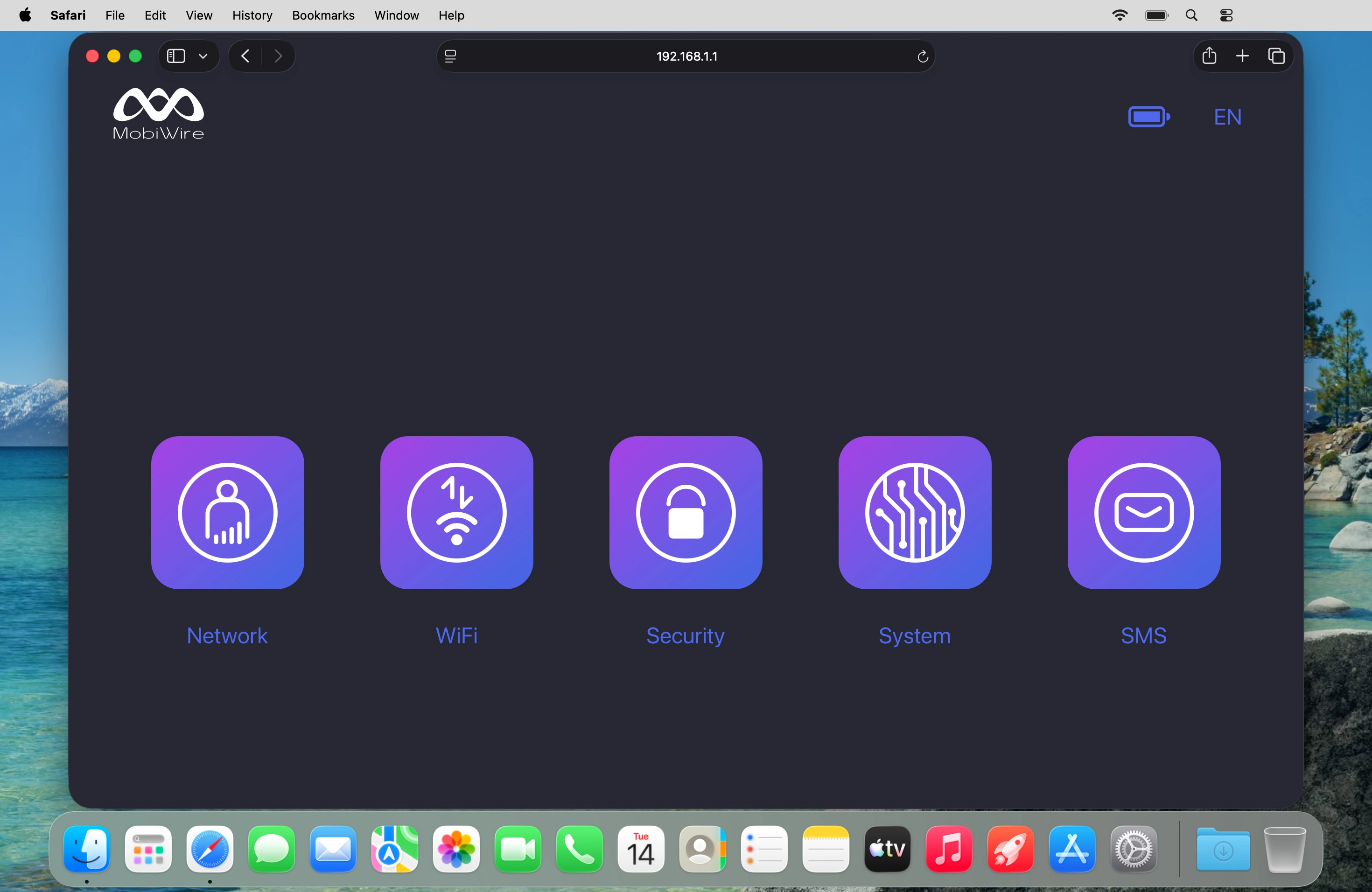
Click WiFi.
Step 1 of 5

1. Find "WiFi Settings"

Click WiFi.
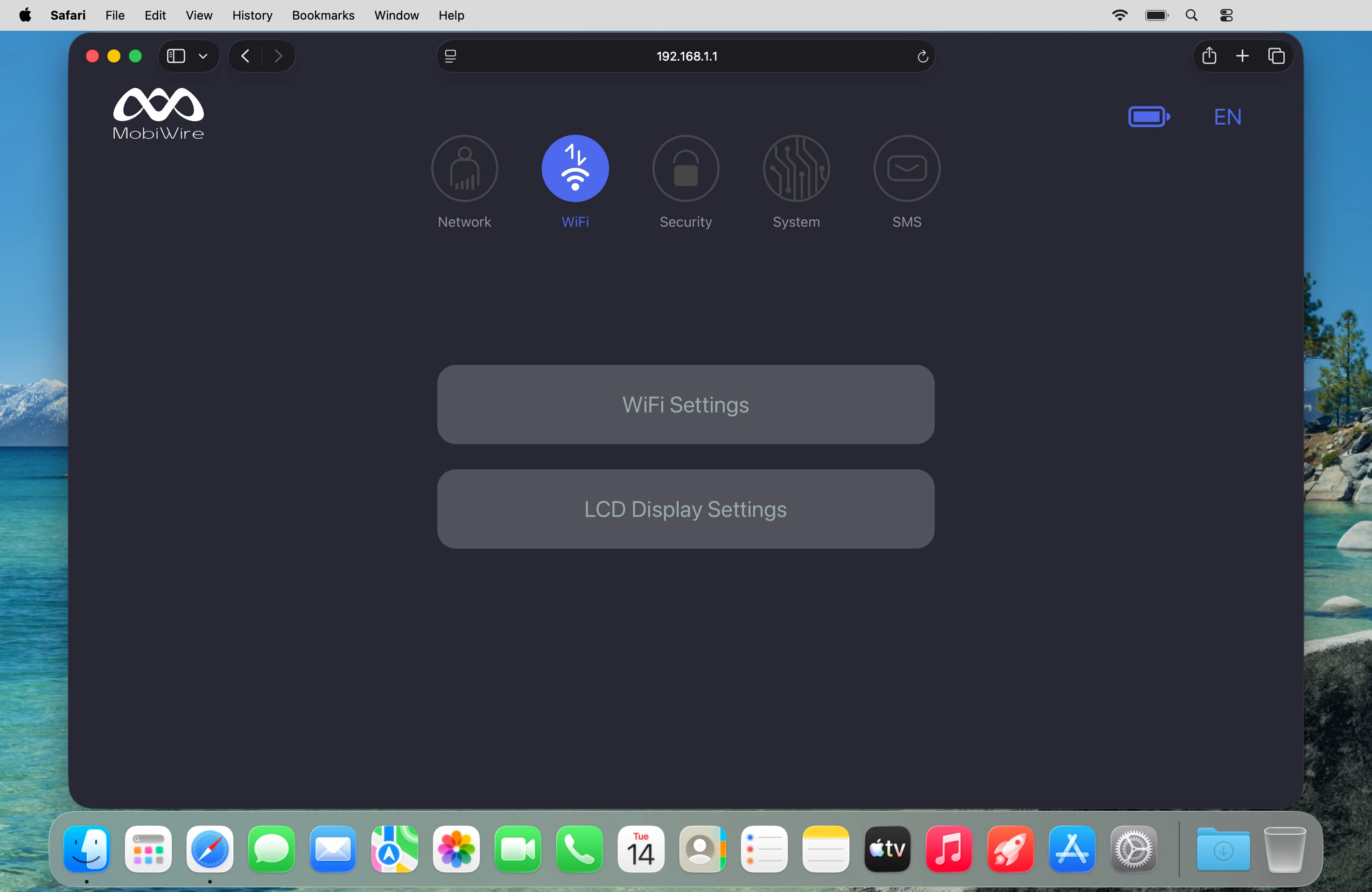
Click WiFi Settings.
Step 2 of 5

1. Find "WiFi Settings"

Click WiFi Settings.
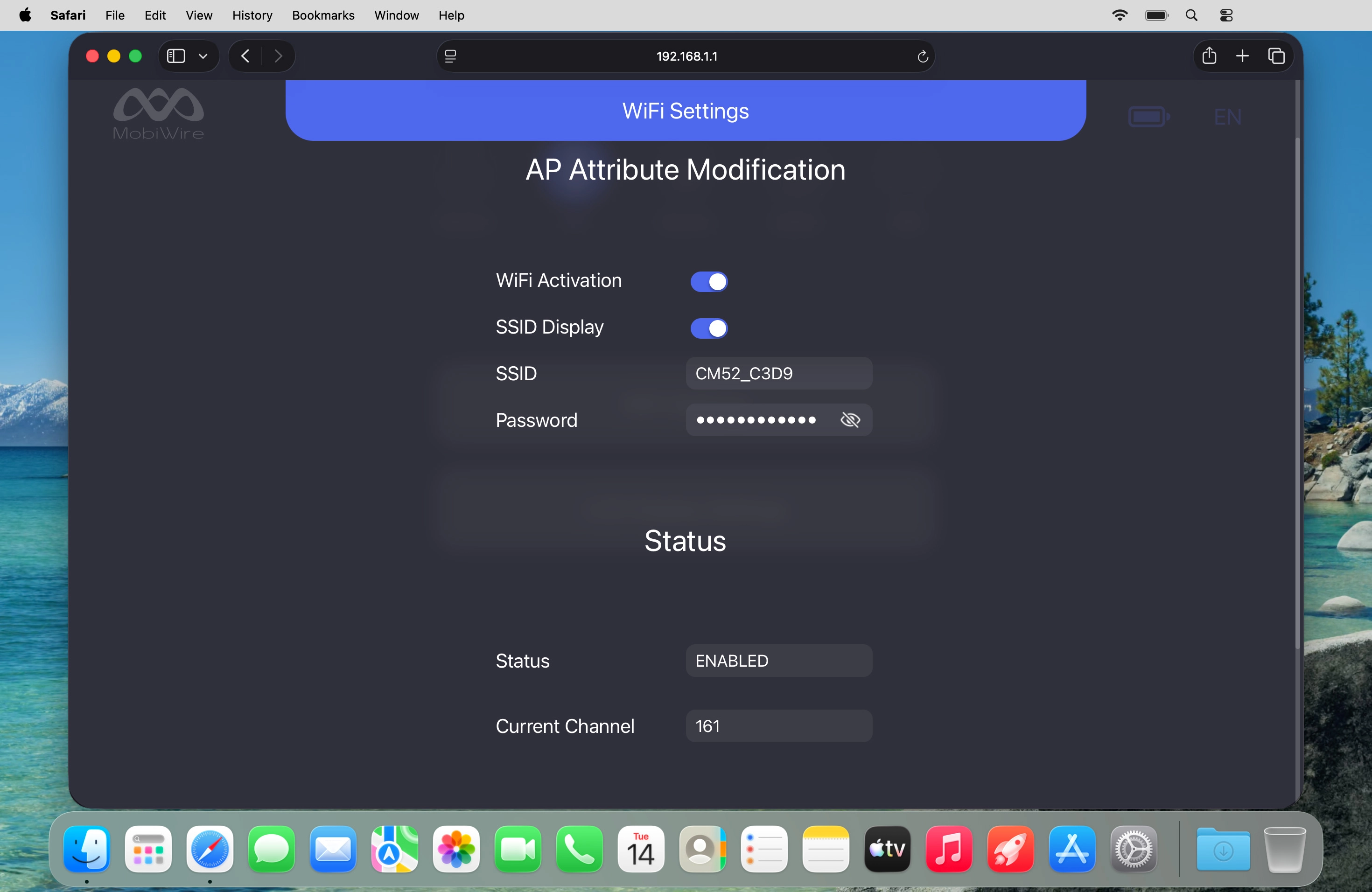
Click the show password icon.
Step 3 of 5

2. Change Wi-Fi hotspot password

Click the show password icon.
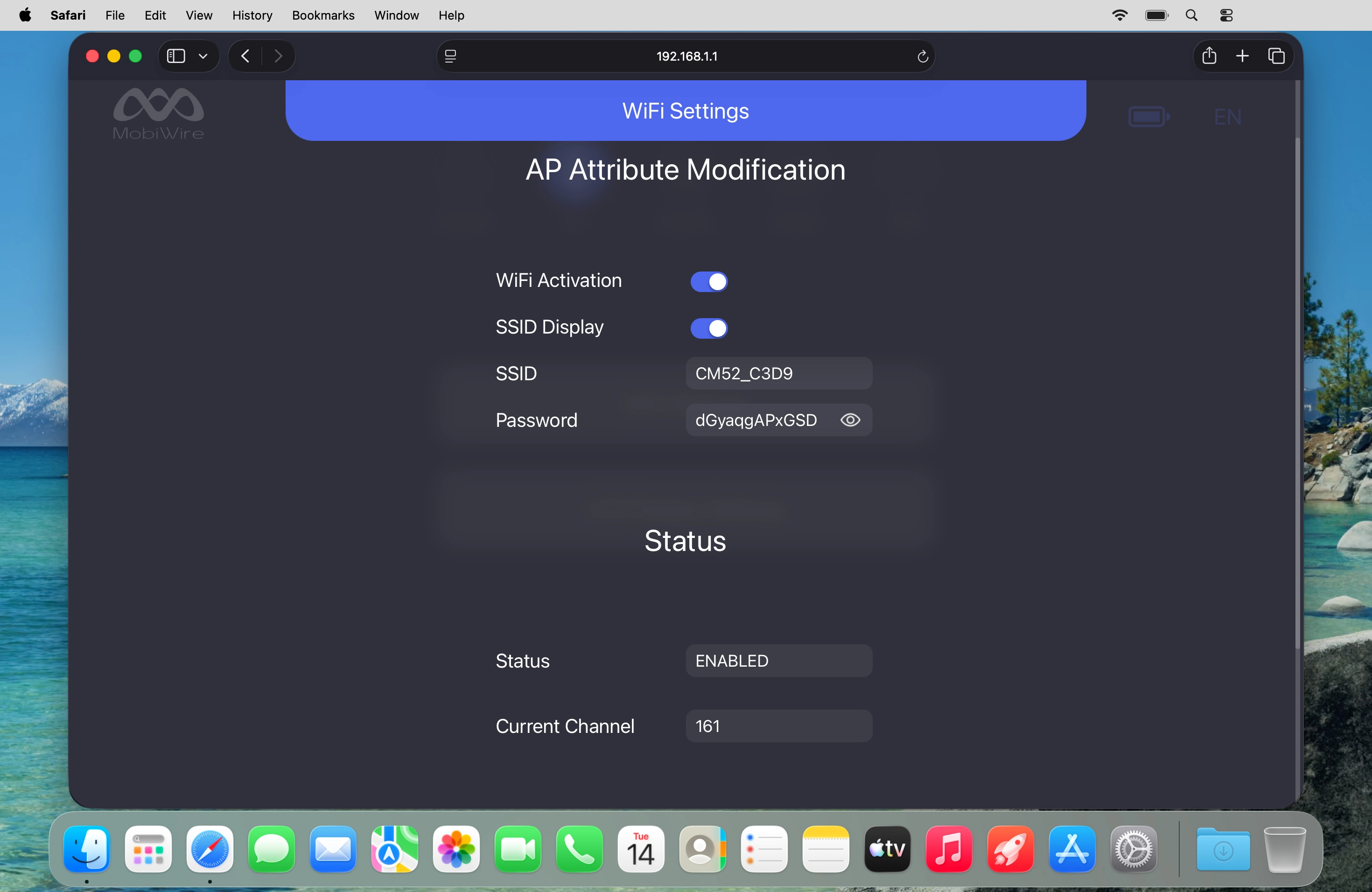
Click the field next to
Step 4 of 5

2. Change Wi-Fi hotspot password

Click the field next to "Password" and key in the required password for your Wi-Fi hotspot.
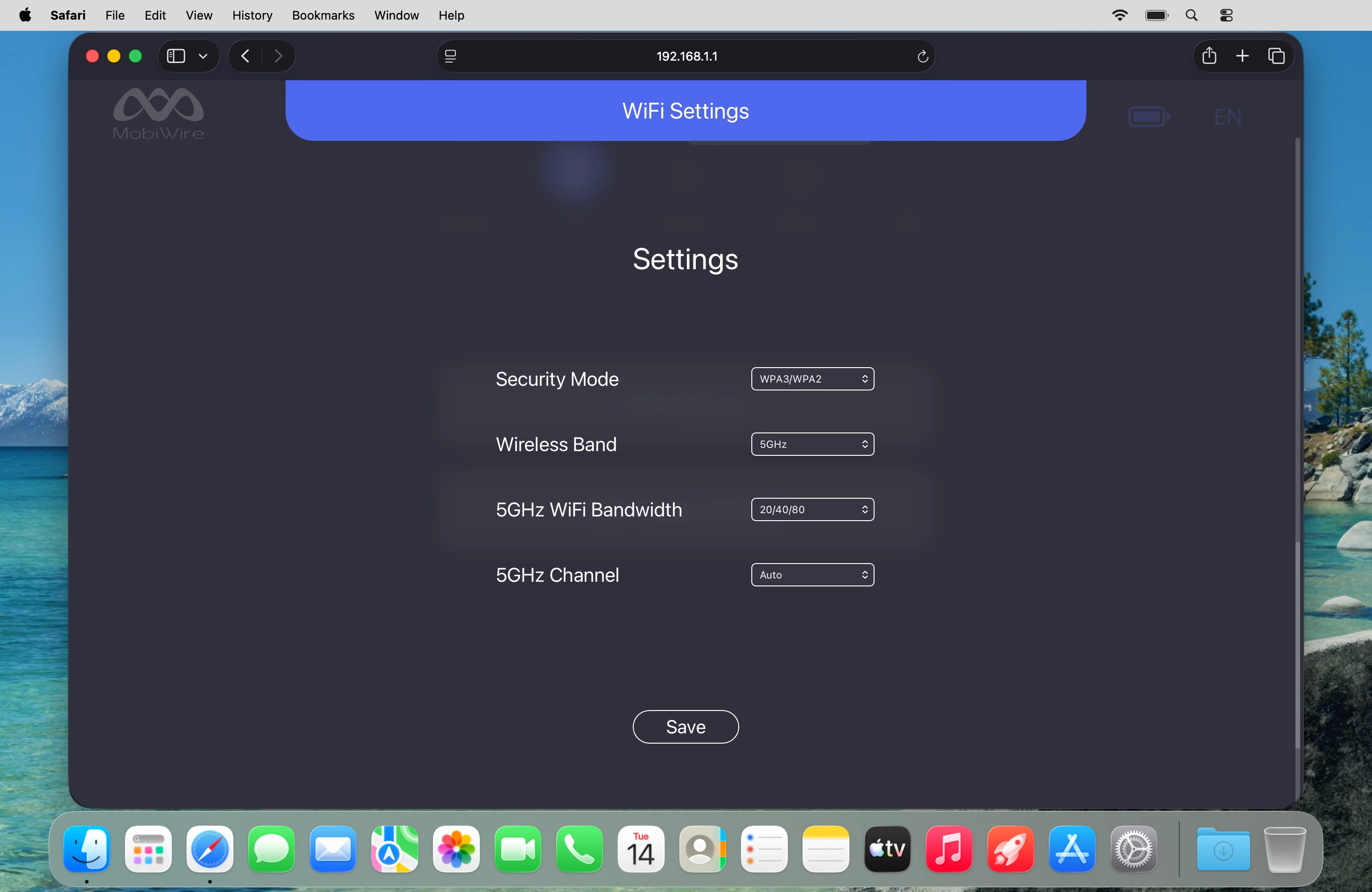
Click Save.
Step 5 of 5

2. Change Wi-Fi hotspot password

Click Save.

Please note that the internet connection is ended and you need to establish a wireless internet connection again with the new settings.

1. Find "WiFi Settings"

Click WiFi.
Click WiFi Settings.

2. Change Wi-Fi hotspot password

Click the show password icon.
Click the field next to "Password" and key in the required password for your Wi-Fi hotspot.
Click Save.
Please note that the internet connection is ended and you need to establish a wireless internet connection again with the new settings.

Thank you for your evaluation!

Get information on...

Or select...

Another device