Vodafone Pocket WiFi® 6 CM52 5G

Vodafone Pocket WiFi® 6 CM52 5G

Mac OS Tahoe

Guide to keys and sockets on your Vodafone Pocket WiFi® 6 CM52 5G Mac OS Tahoe

Read help info

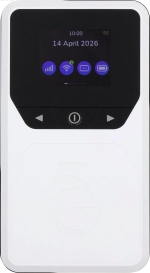
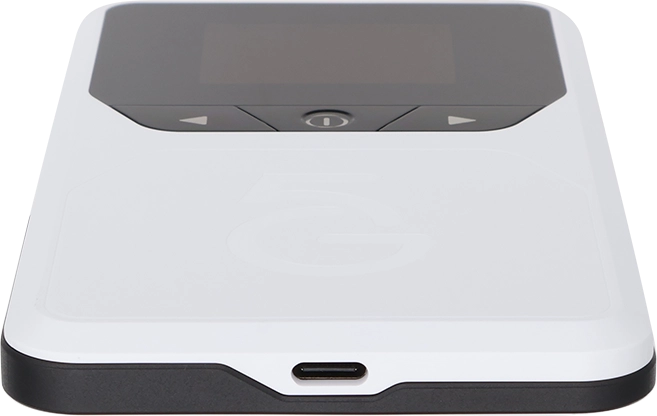
The list below shows you what the different keys and sockets on your router are used for.

Connect the charger to the socket and to a wall socket to charge the battery.
Step 1 of 4

1. Socket

Connect the charger to the socket and to a wall socket to charge the battery.
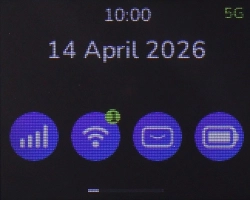
Press and hold On/Off to turn your router on or off.
Step 2 of 4

2. On/Off

Press and hold On/Off to turn your router on or off.

Press the Functions keys to change between the different menus on your router's screen.
Step 3 of 4

3. Function keys

Press the Functions keys to change between the different menus on your router's screen.

Press and hold the circle above
Step 4 of 4

4. "RESET” circle

Press and hold the circle above "RESET" for at least 5 seconds to restore the factory default settings.

1. Socket

Connect the charger to the socket and to a wall socket to charge the battery.
2. On/Off

Press and hold On/Off to turn your router on or off.

3. Function keys

Press the Functions keys to change between the different menus on your router's screen.
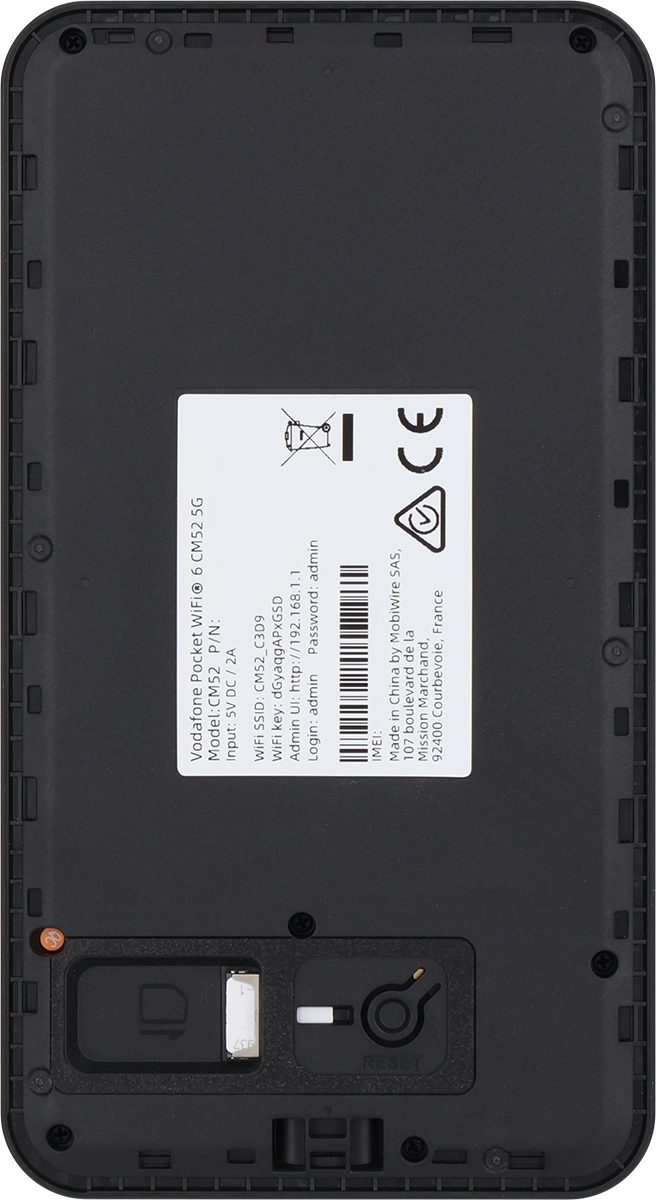
4. "RESET” circle

Press and hold the circle above "RESET" for at least 5 seconds to restore the factory default settings.

Thank you for your evaluation!

Get information on...

Or select...

Another device