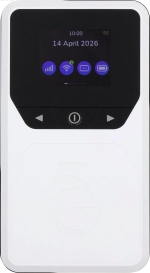
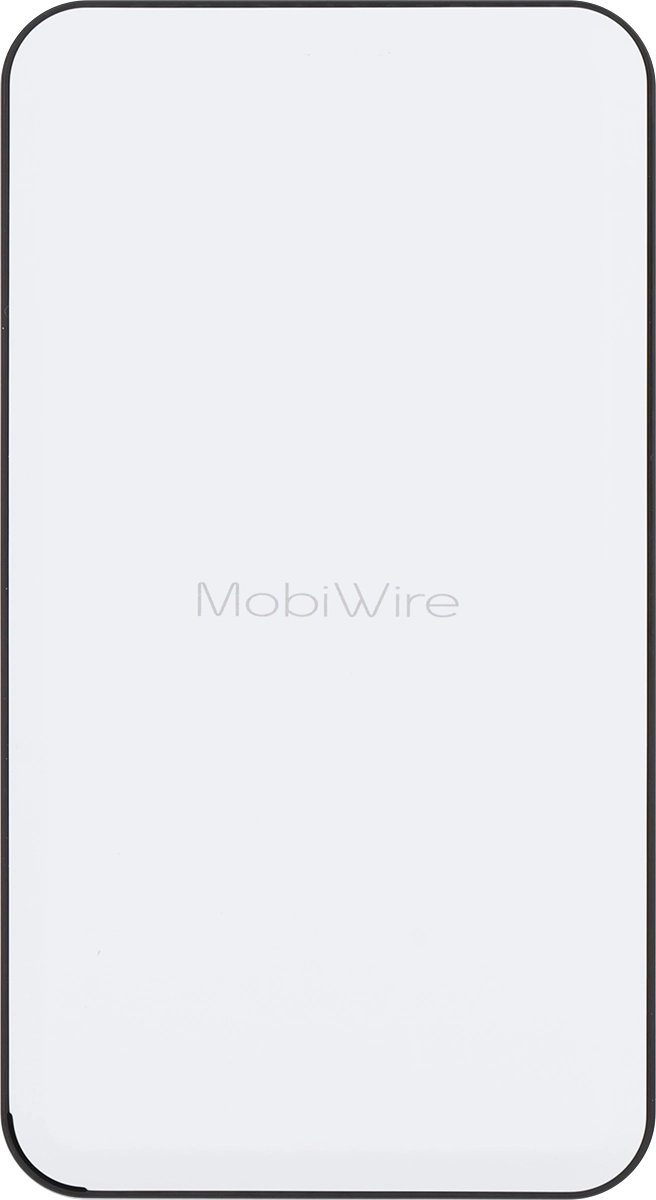
1. Remove back cover
Turn the back of your router towards you. Take hold of the bottom left corner of the back cover and remove it.
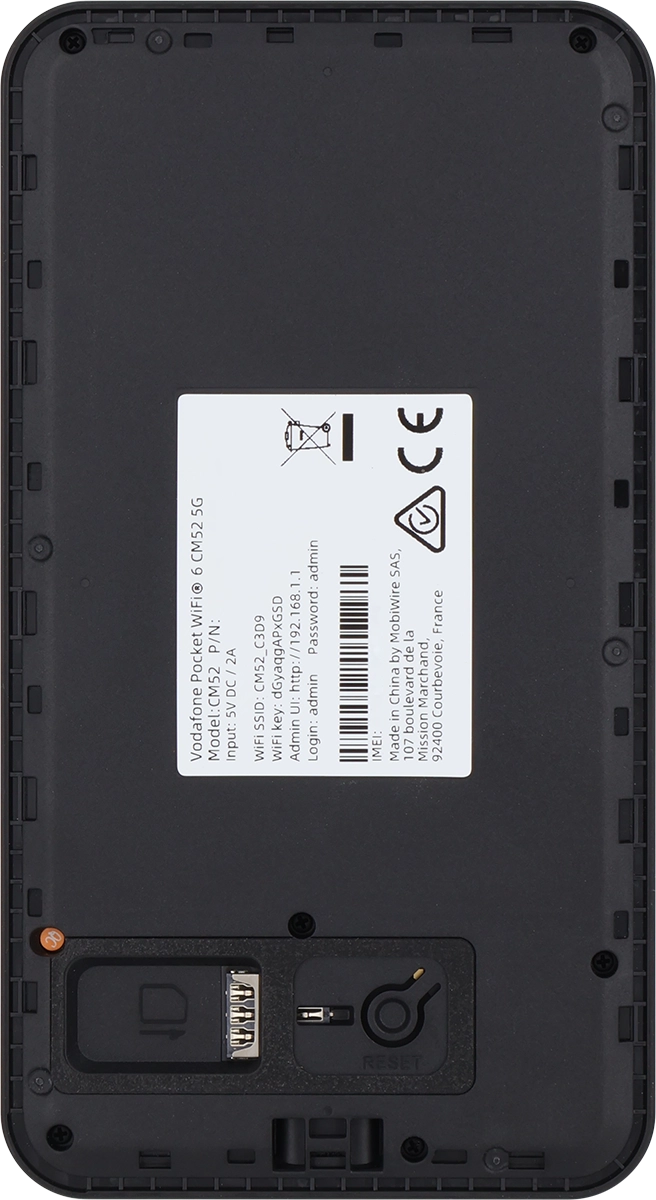
2. Insert SIM
Place your SIM as illustrated next to the SIM holder.
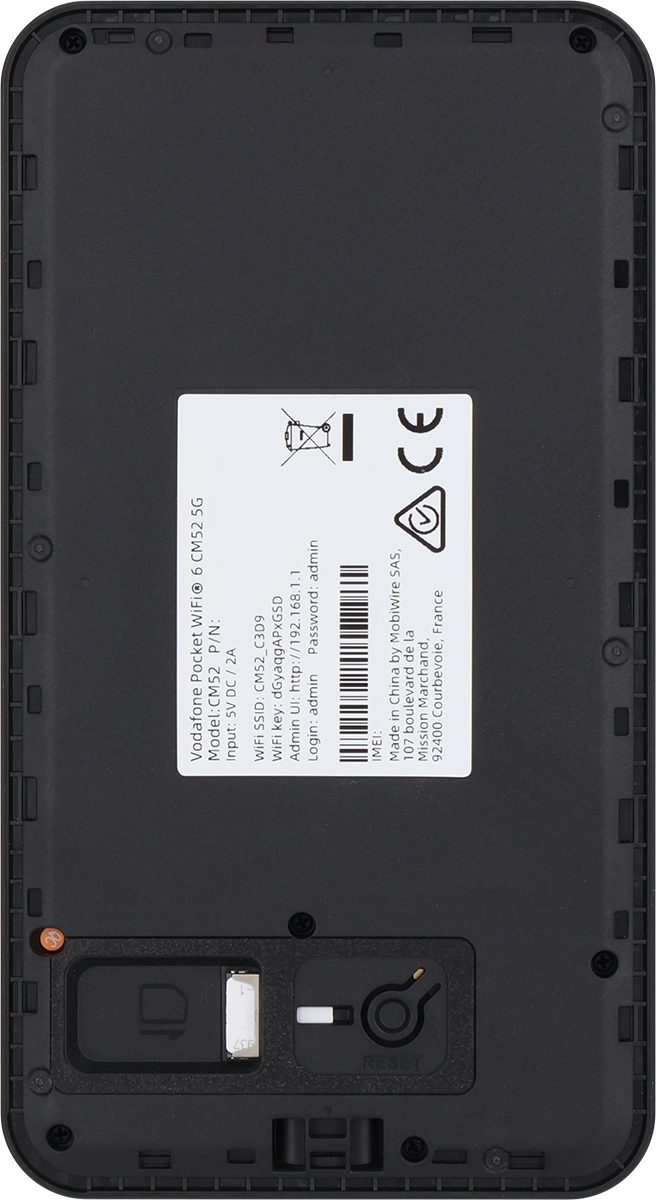
2. Insert SIM
Slide your SIM into the SIM holder.
3. Replace back cover
Place the back cover on your router and press it into place.



4. Turn on your router
Press and hold On/Off until your router is turned on.
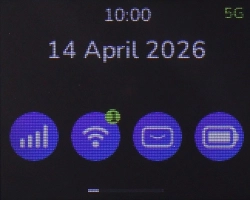
5. See the router login information
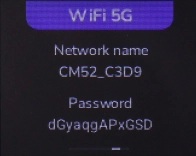
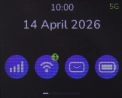
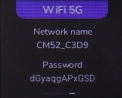
Press the Left function key the necessary number of times to select "WiFi 5G".
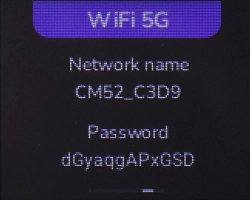
5. See the router login information
The login information is displayed.
5. See the router login information
You can also find the login information on the inside of your router.
6. Establish a connection to the internet
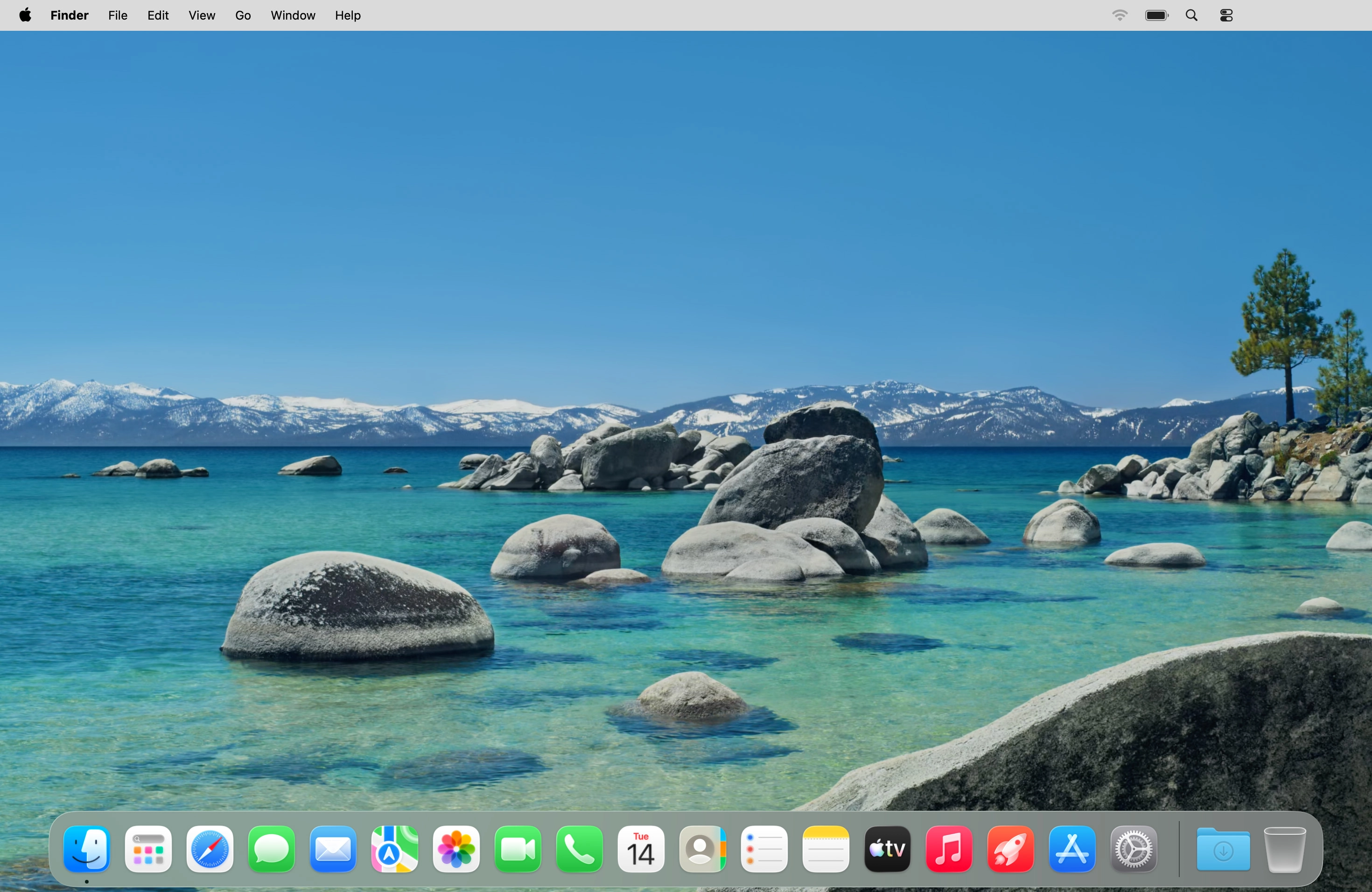
Do the following on your computer: Click the network icon.
6. Establish a connection to the internet
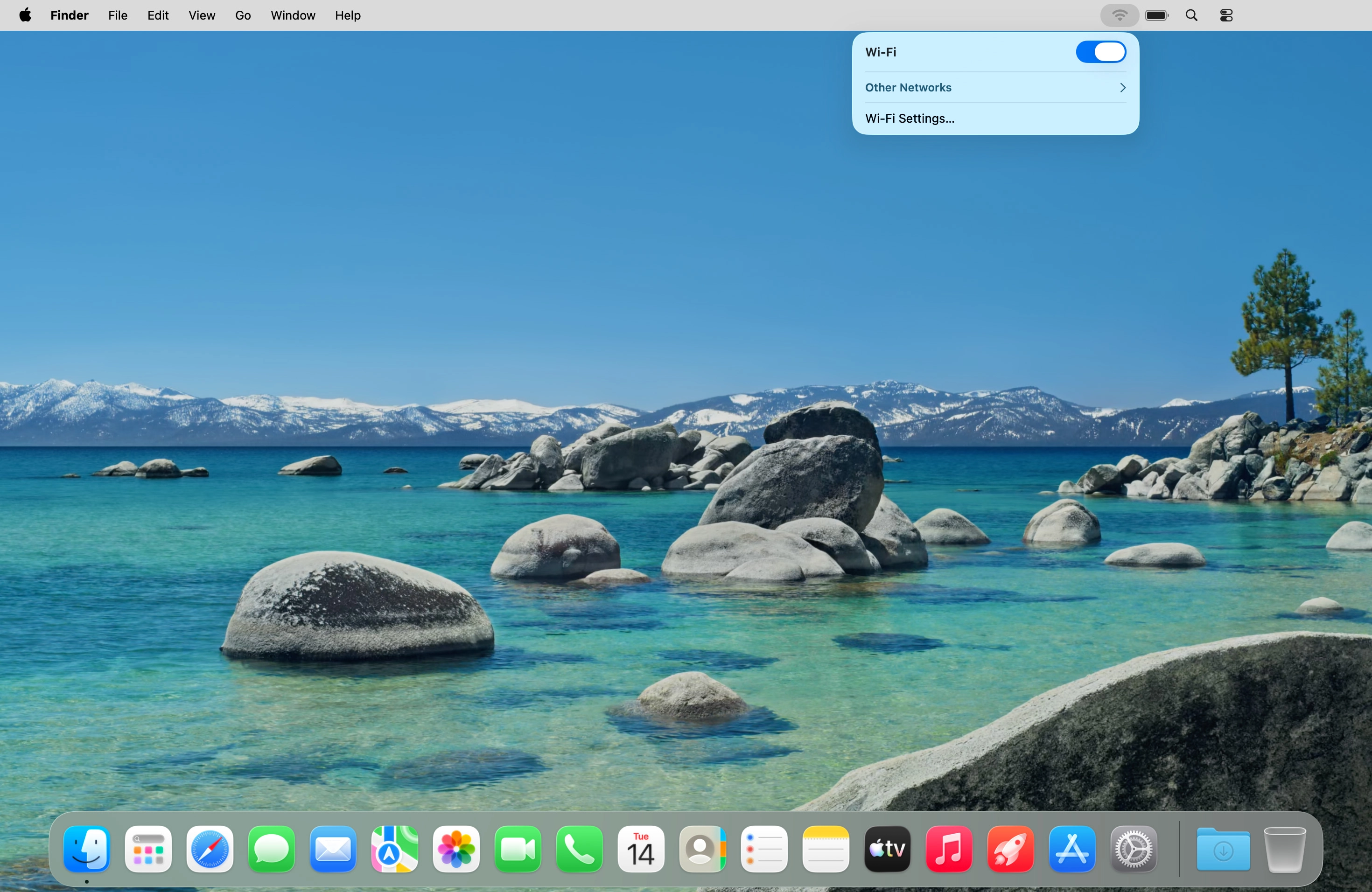
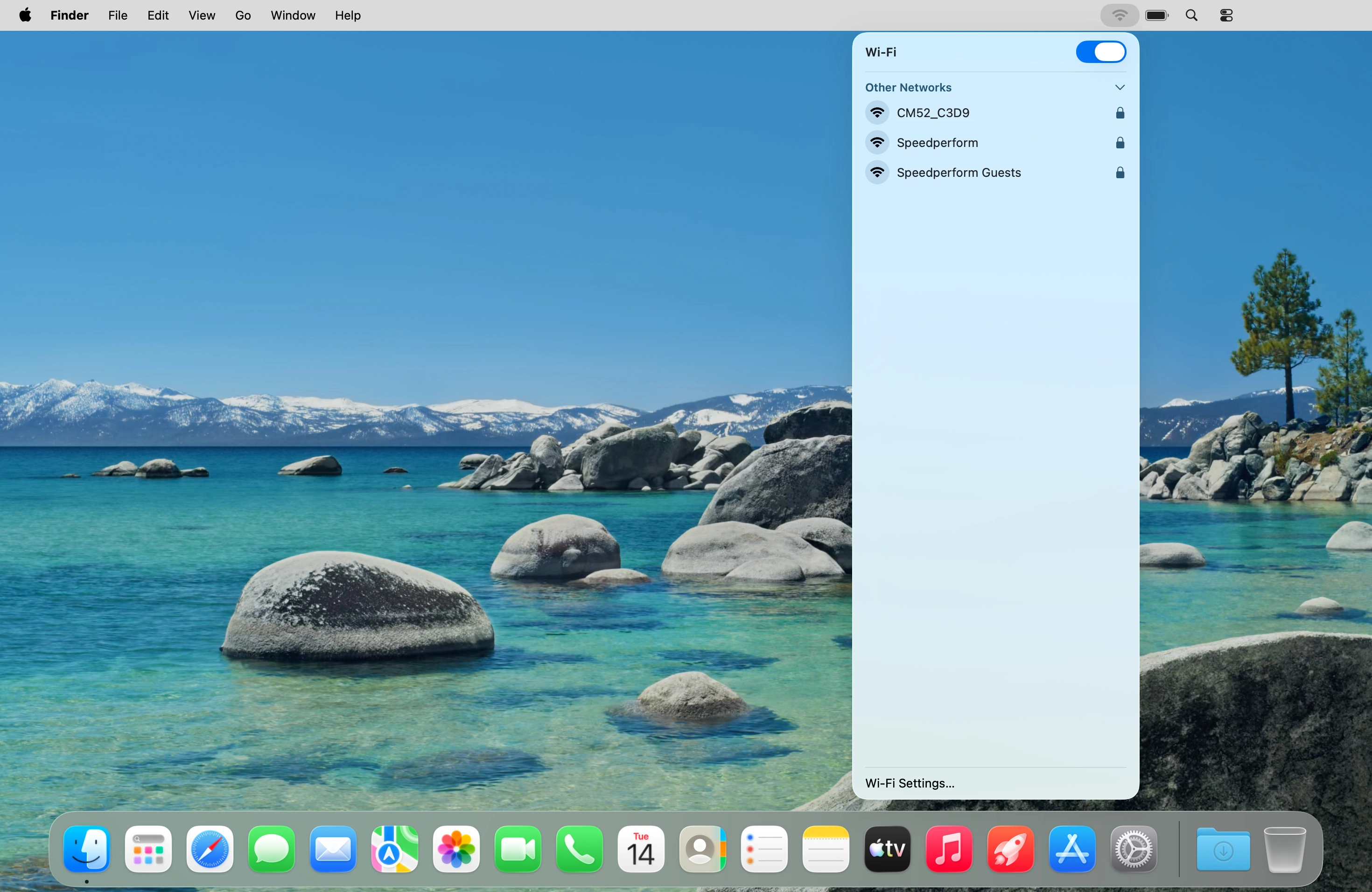
Click Other Networks.
6. Establish a connection to the internet
Click the name of your Wi-Fi hotspot.
6. Establish a connection to the internet
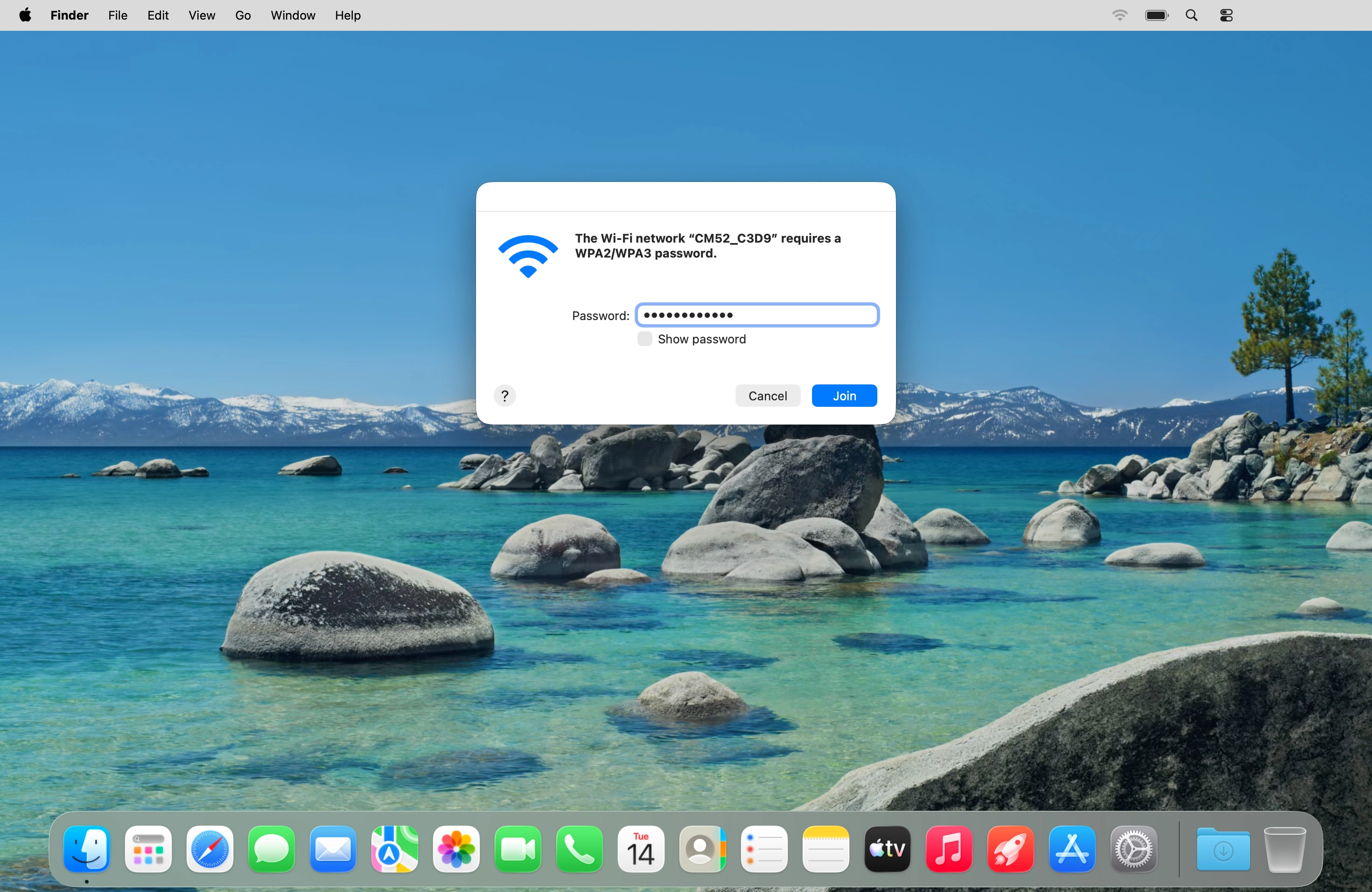
Key in the Wi-Fi password for your Wi-Fi hotspot and click Join.
7. Start configuration of your router
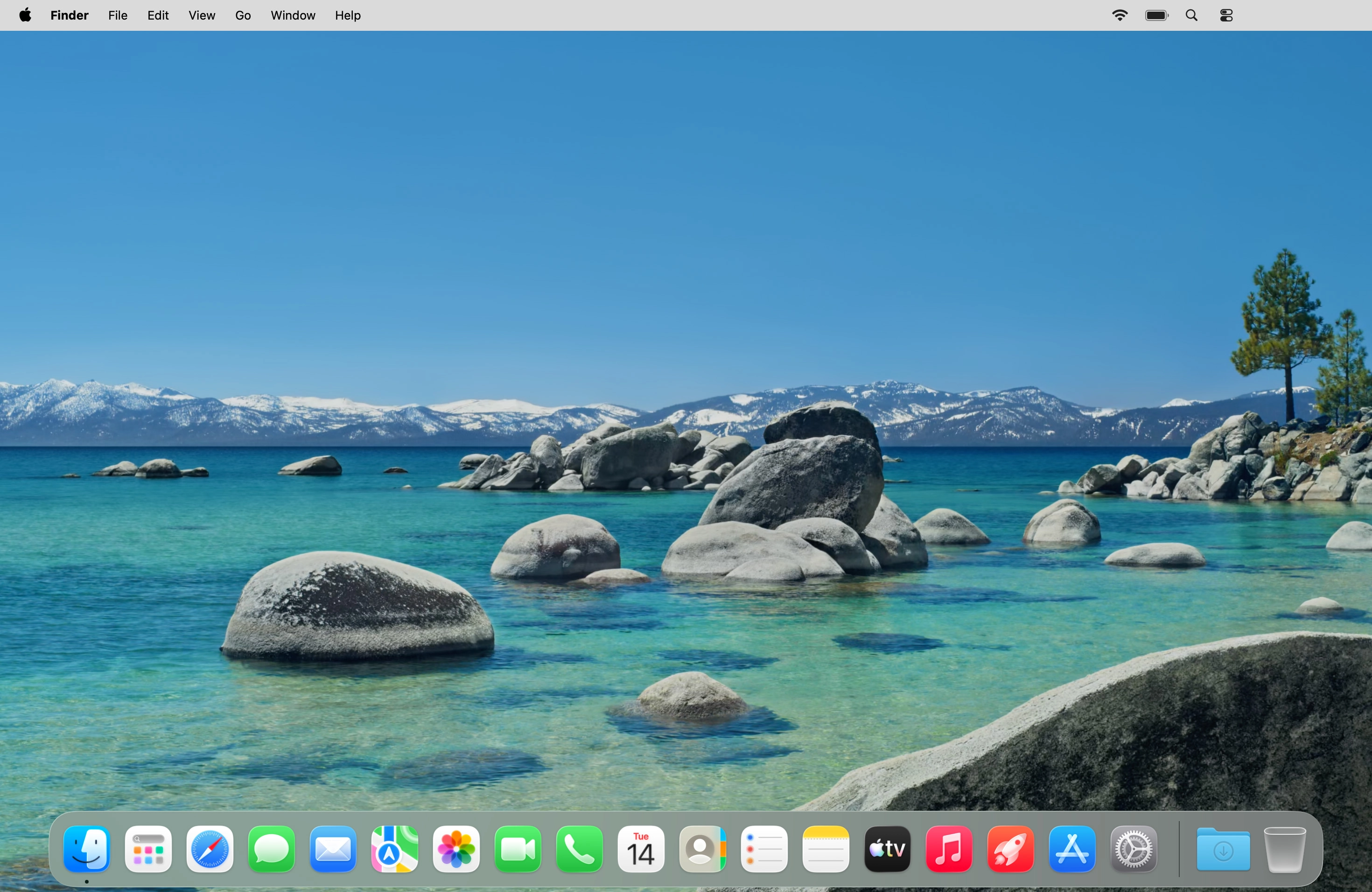
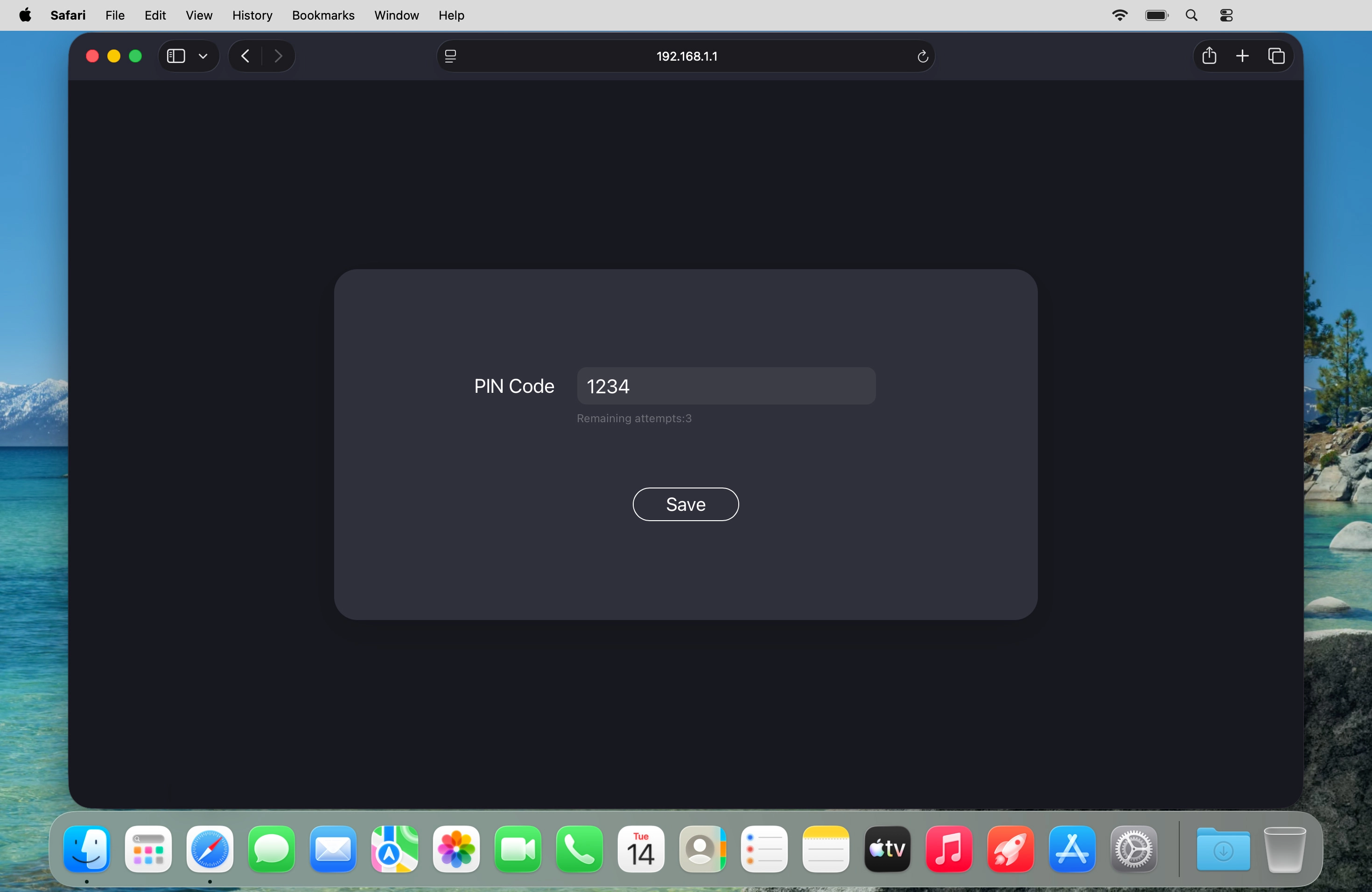
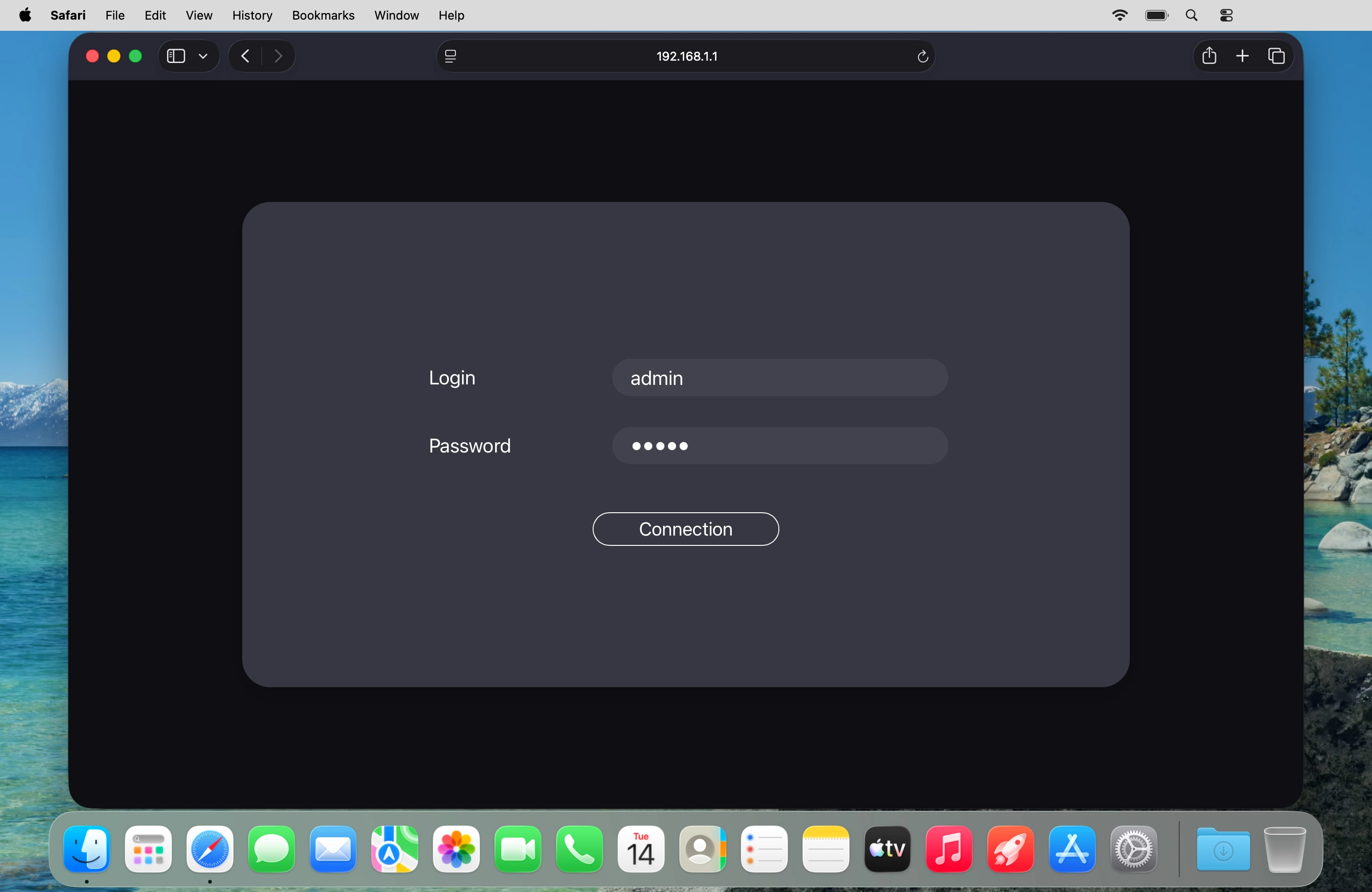
Open an internet browser on your computer and go to 192.168.1.1.
8. Enter your PIN
If your SIM is PIN protected, key in your PIN and click Save.
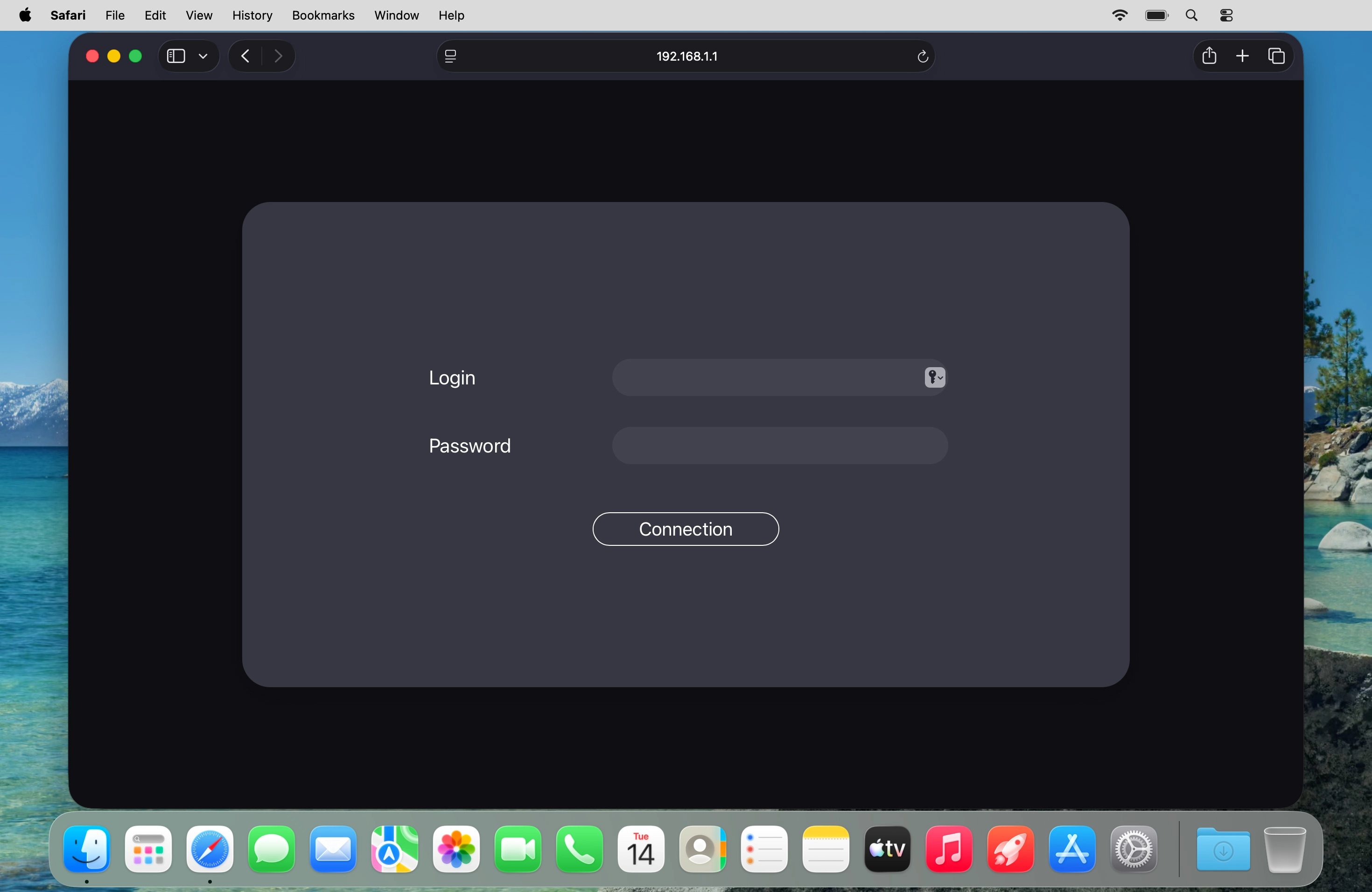
9. Create new password for the router web interface
Click the field next to "Login" and key in the username for your router.
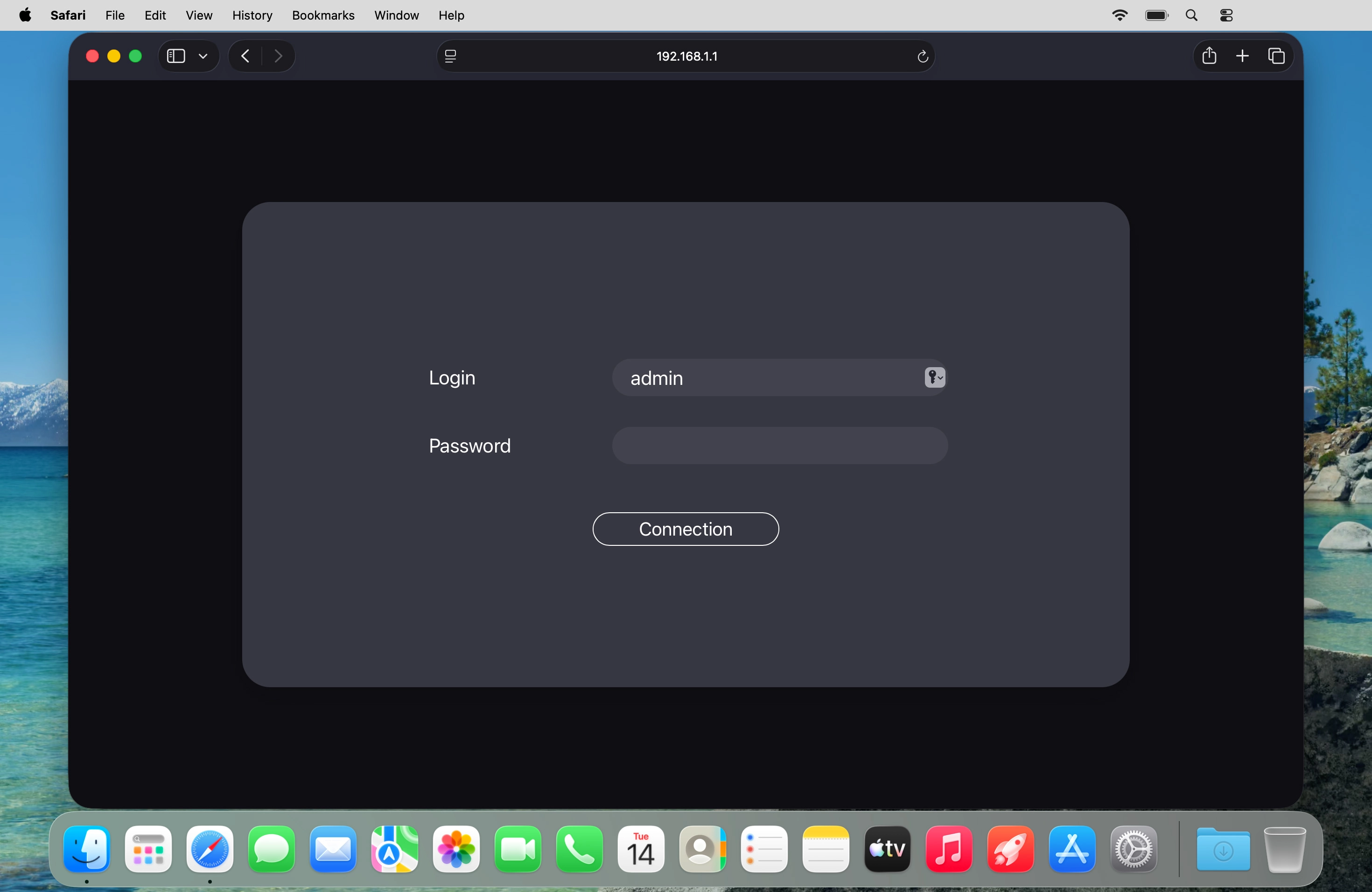
9. Create new password for the router web interface
Click the field next to "Password" and key in the password for your router.
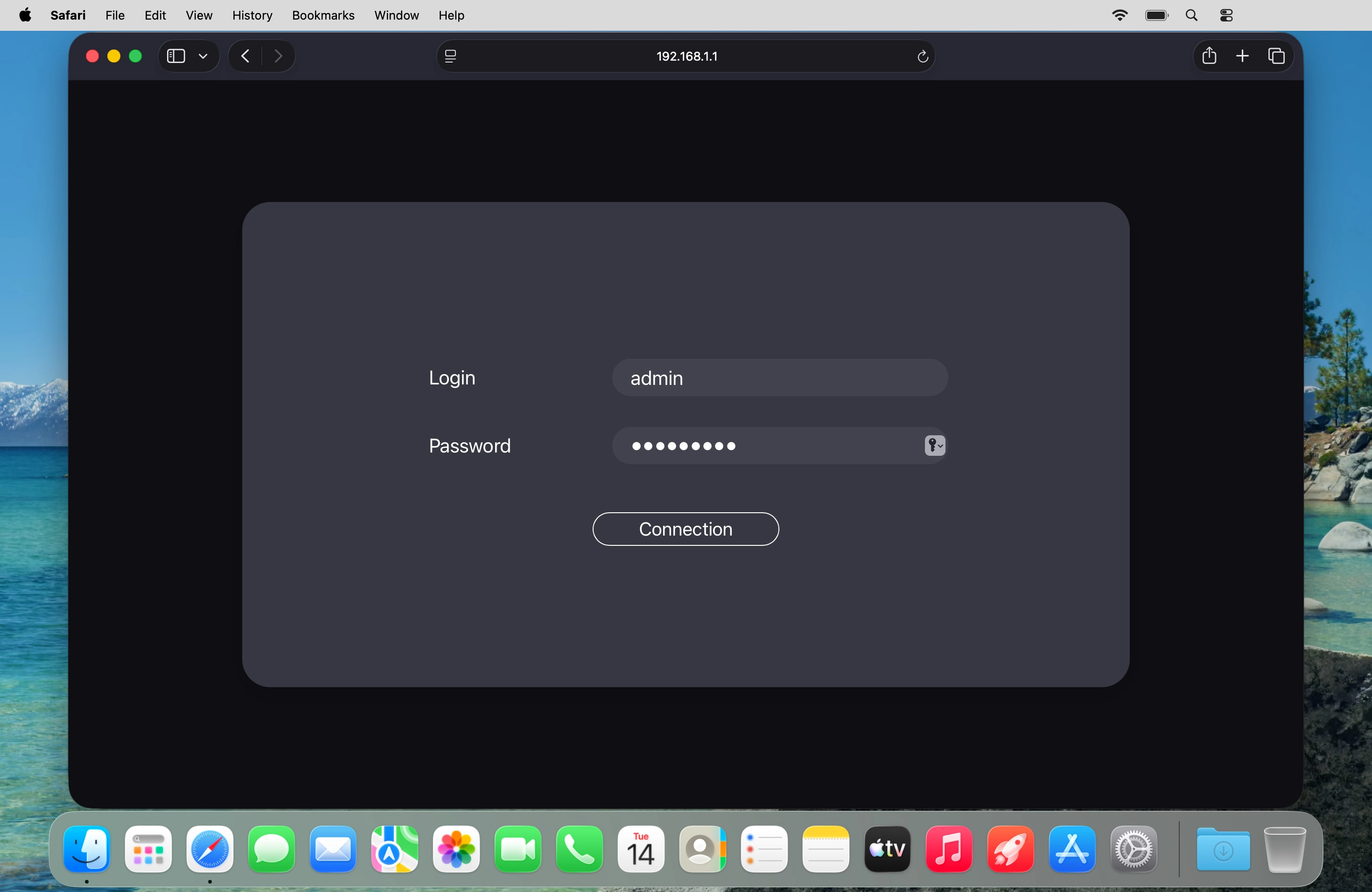
9. Create new password for the router web interface
Click Connection.
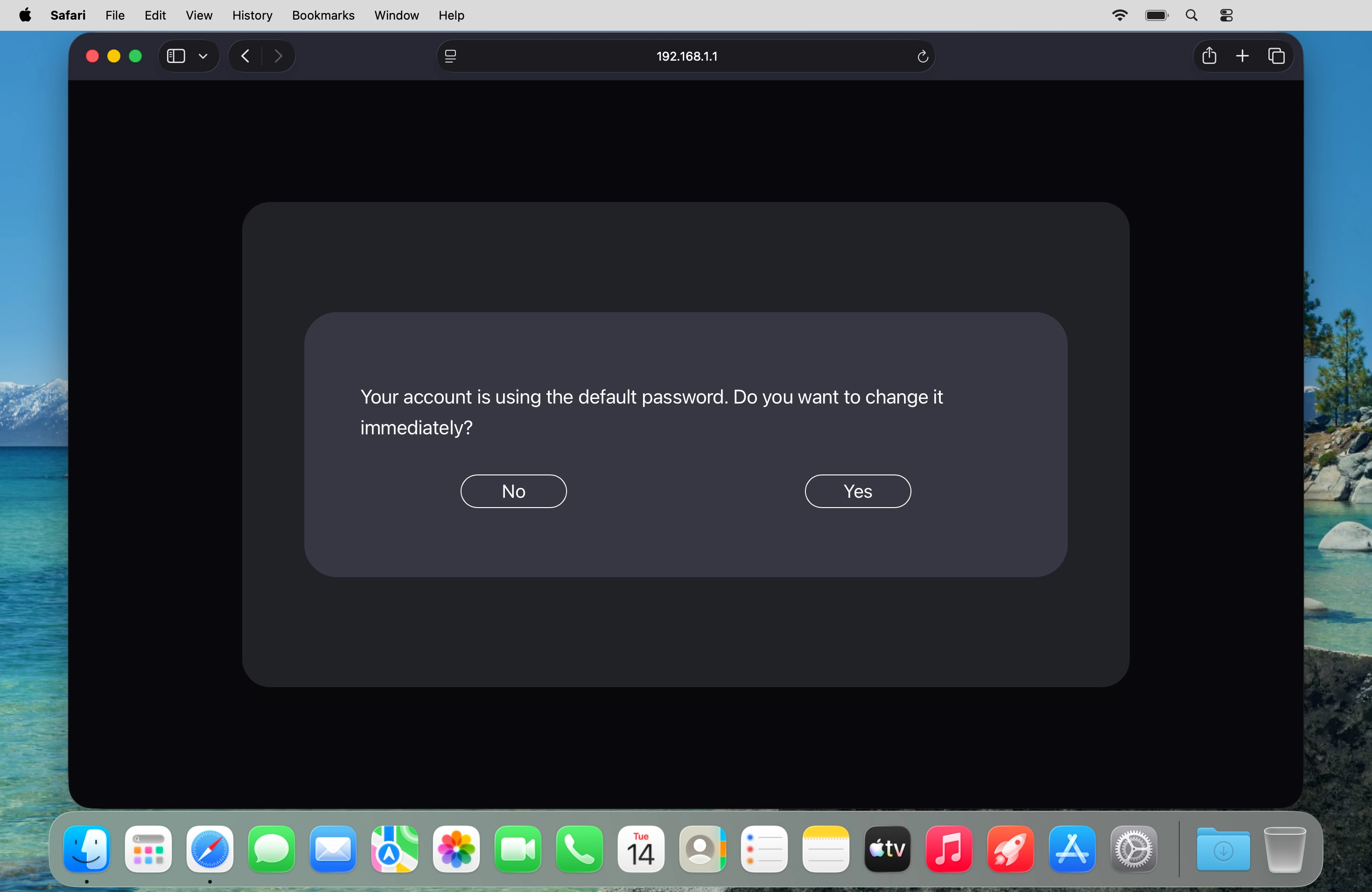
9. Create new password for the router web interface
Click Yes.
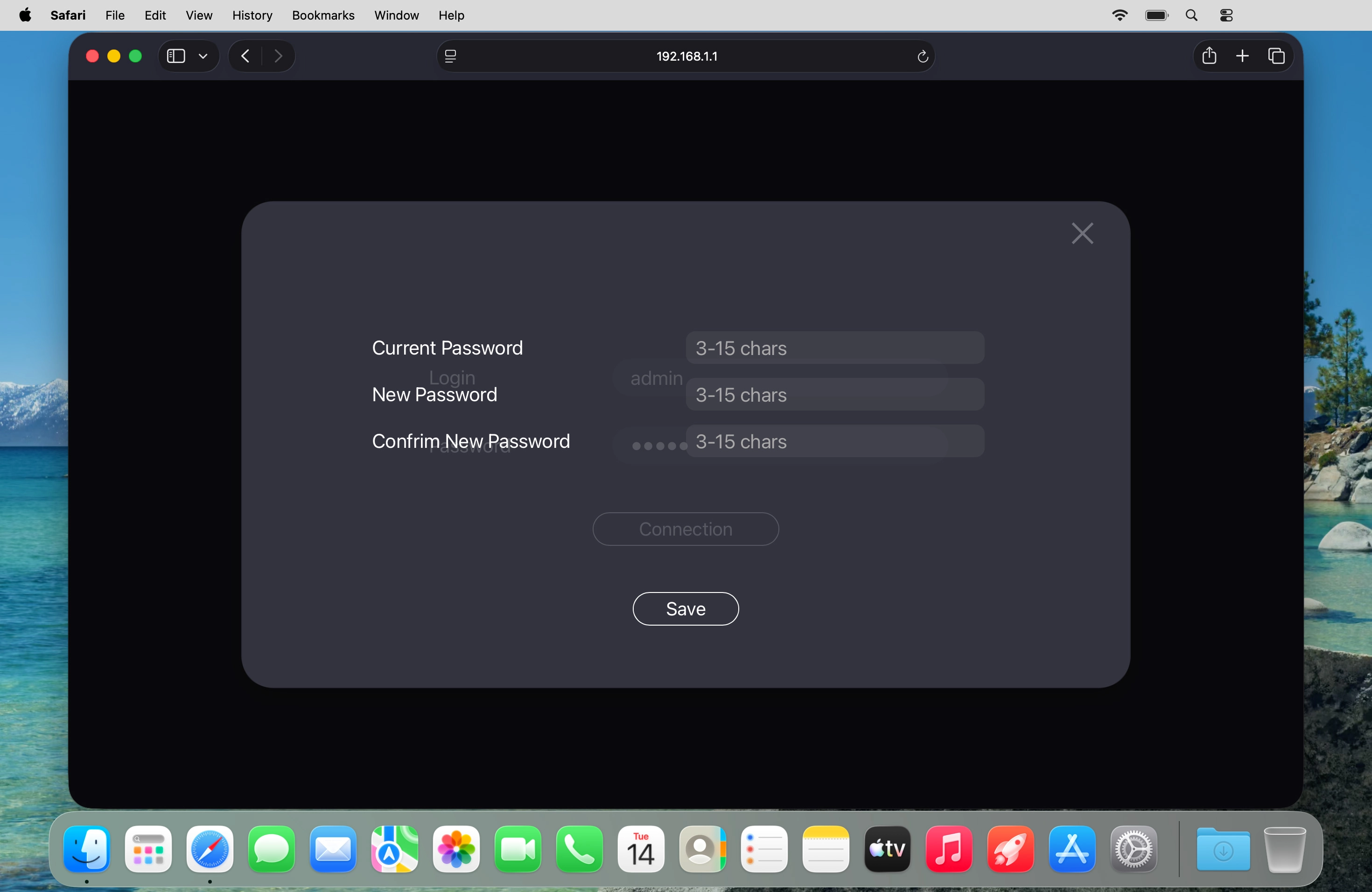
9. Create new password for the router web interface
Click the field next to "Current Password" and key in the current password.
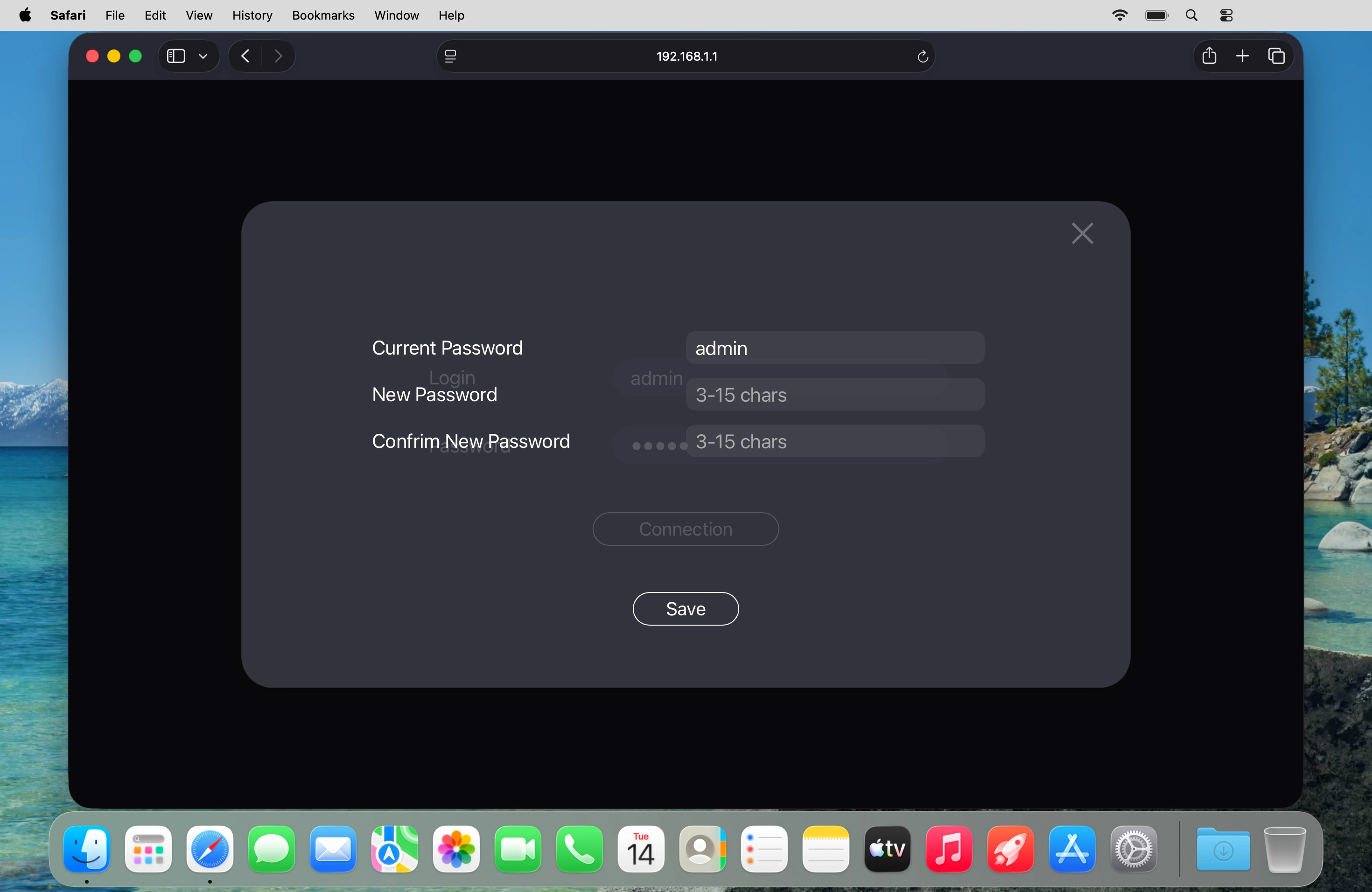
9. Create new password for the router web interface
Click the field next to "New Password" and key in the required password.
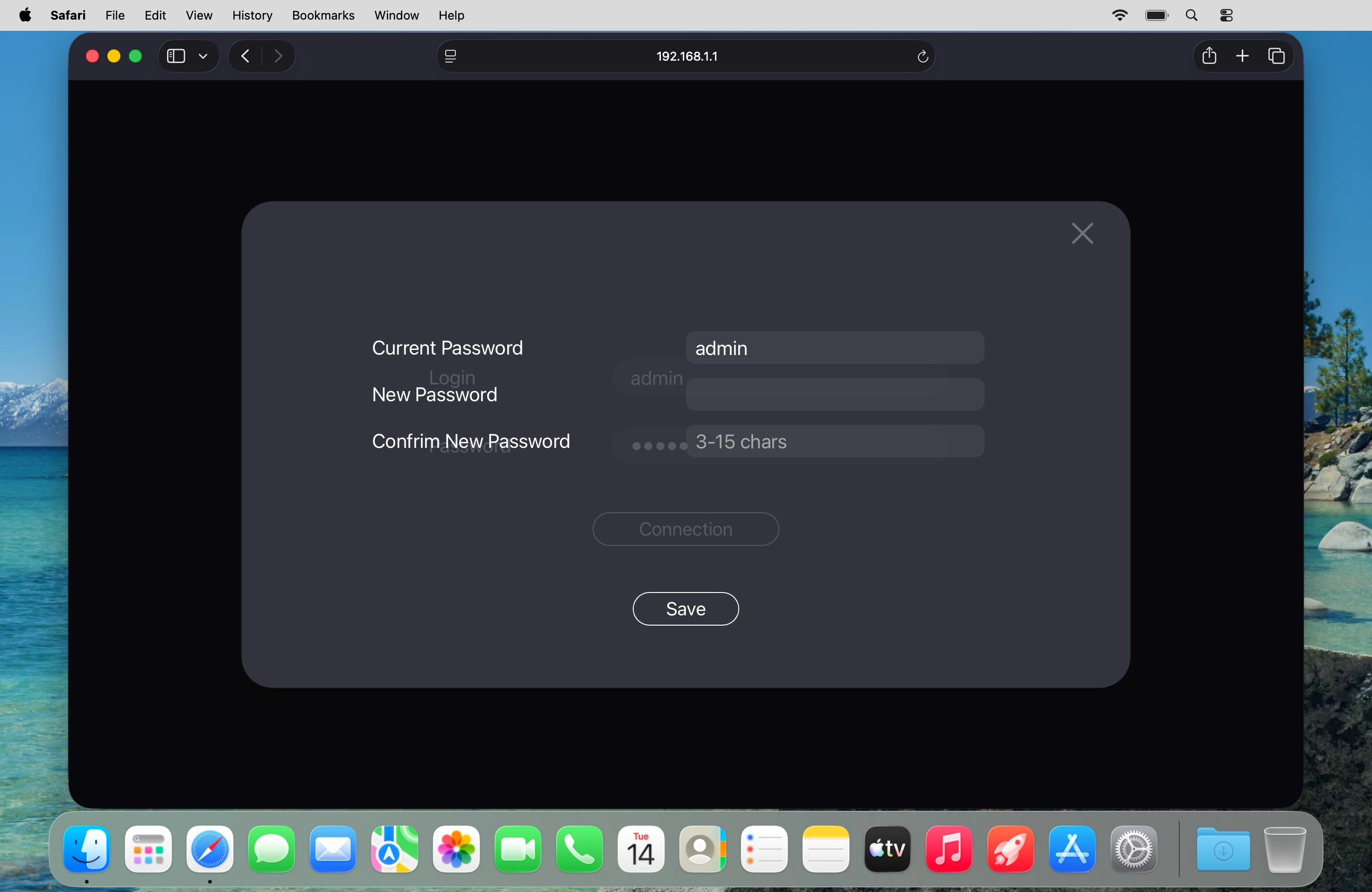
9. Create new password for the router web interface
Click the field next to "Confirm New Password" and key in the selected password again.
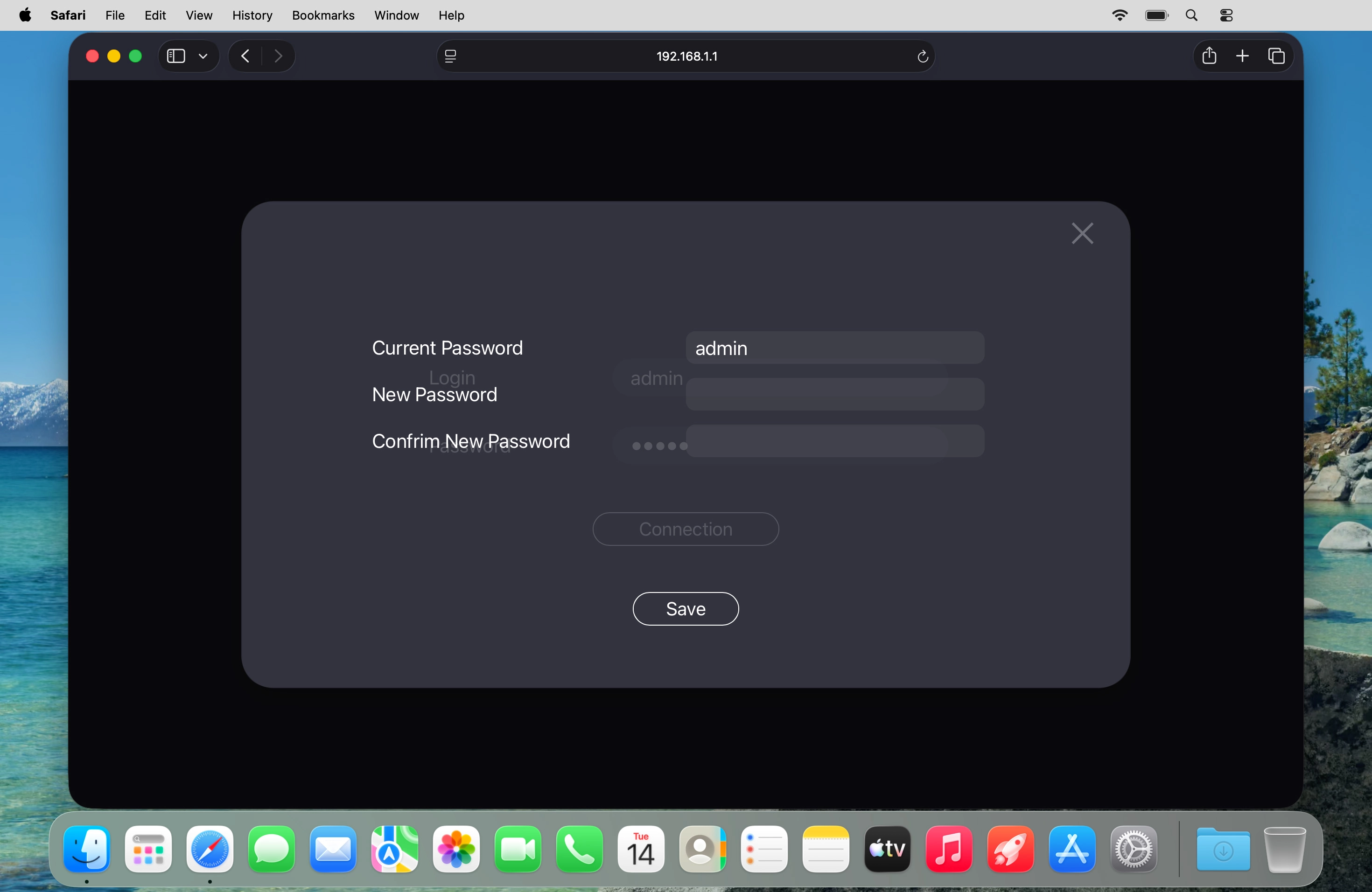
9. Create new password for the router web interface
Click Save.
10. Establish a connection to your router's web interface
Click the field next to "Password" and key in the new password.
10. Establish a connection to your router's web interface
Click Connection.
1. Remove back cover
2. Insert SIM
3. Replace back cover
4. Turn on your router

5. See the router login information
6. Establish a connection to the internet
7. Start configuration of your router
8. Enter your PIN
9. Create new password for the router web interface
10. Establish a connection to your router's web interface
Thank you for your evaluation!

Thank you for your evaluation!