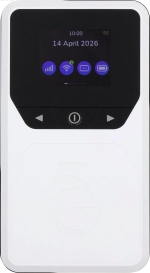
Vodafone Pocket WiFi® 6 CM52 5G

Vodafone Pocket WiFi® 6 CM52 5G

Mac OS Tahoe

Turn use of PIN on your Vodafone Pocket WiFi® 6 CM52 5G Mac OS Tahoe on or off

Read help info

The PIN protects your SIM from unauthorised use if your router should get stolen. If use of PIN is turned on, it needs to be keyed in when you turn on your router. Remember, you need to establish a connection to the router web interface.

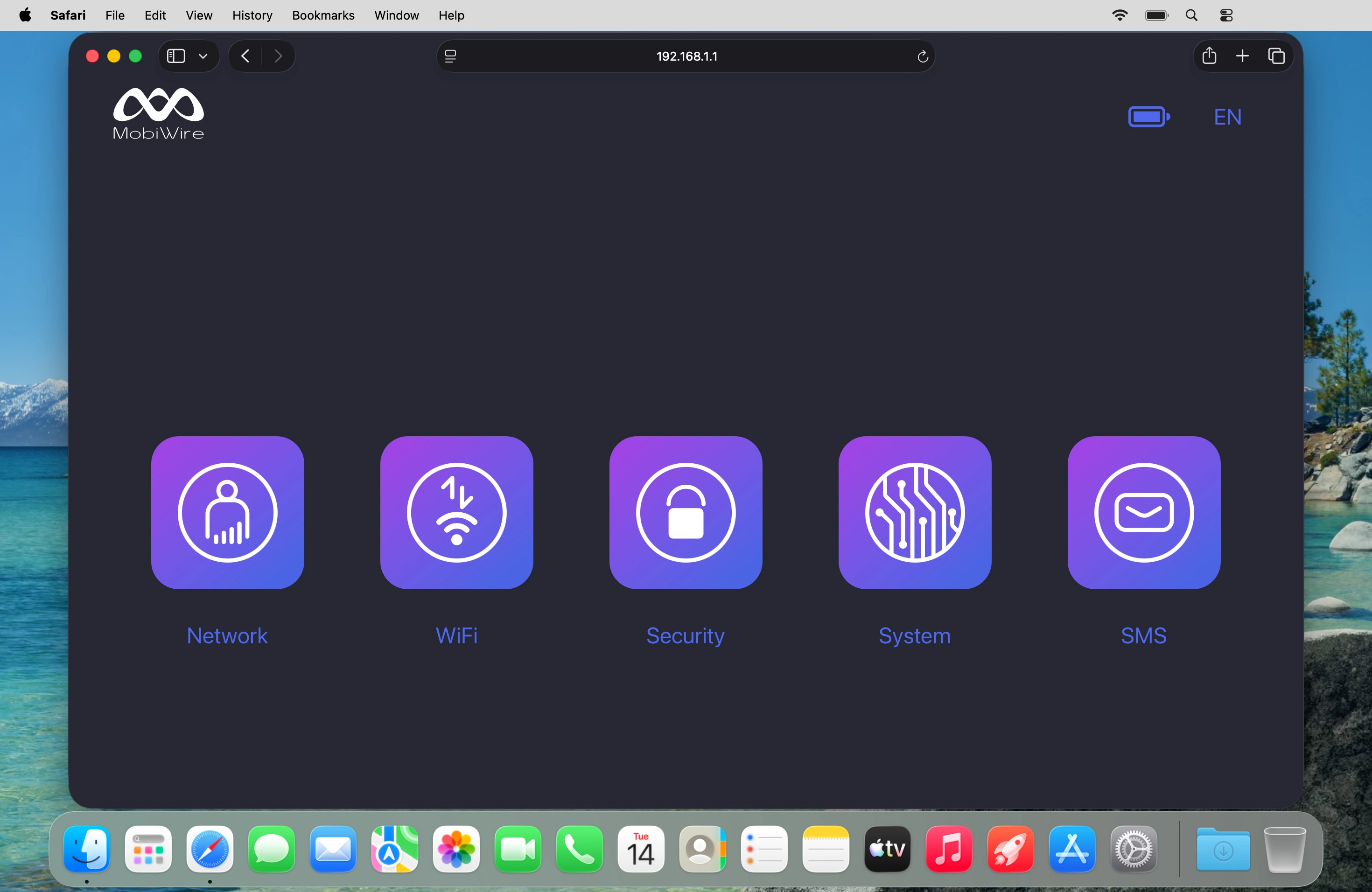
Click Security.
Step 1 of 5

1. Find "SIM PIN Management"

Click Security.
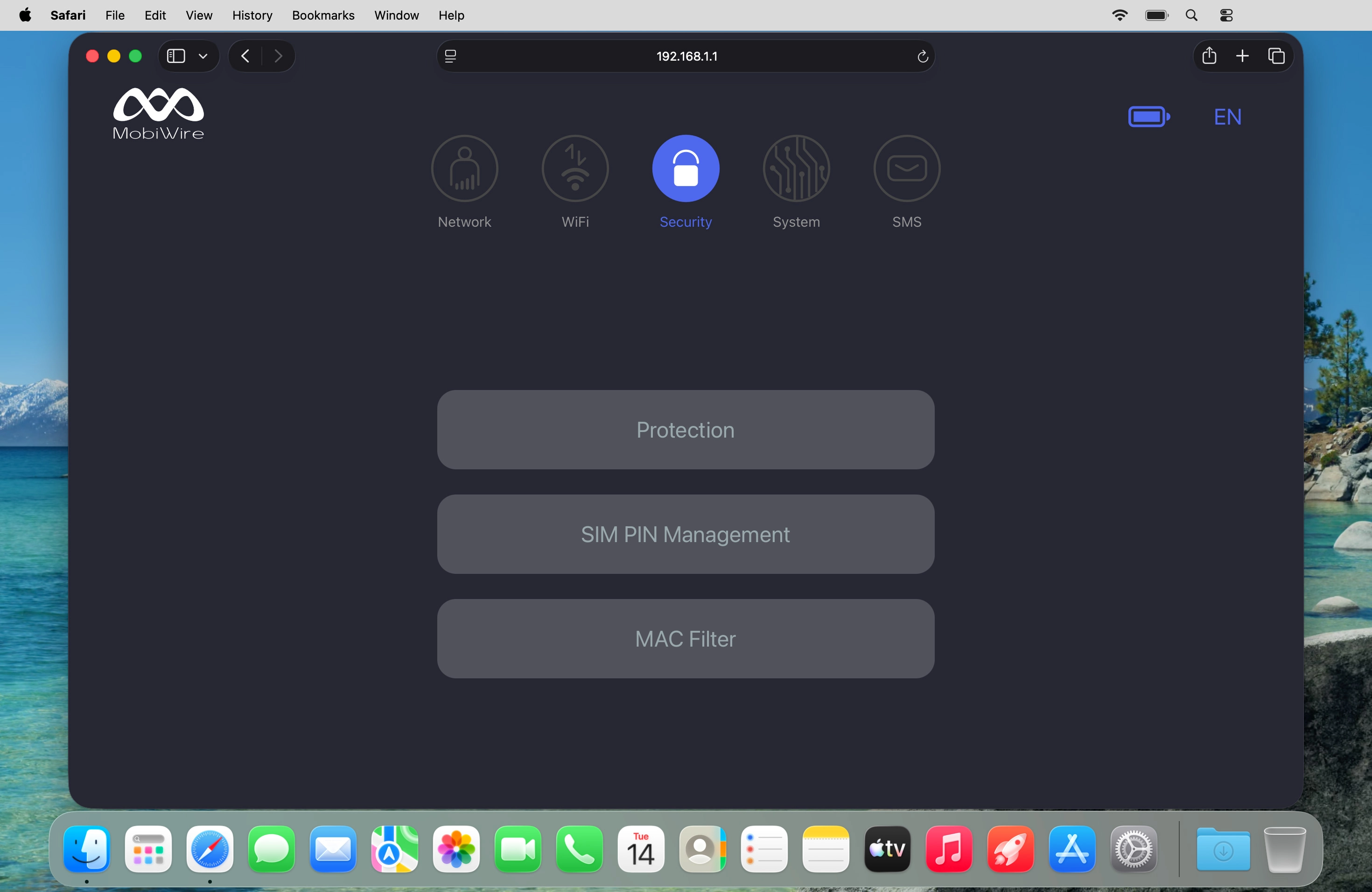
Click SIM PIN Management.
Step 2 of 5

1. Find "SIM PIN Management"

Click SIM PIN Management.
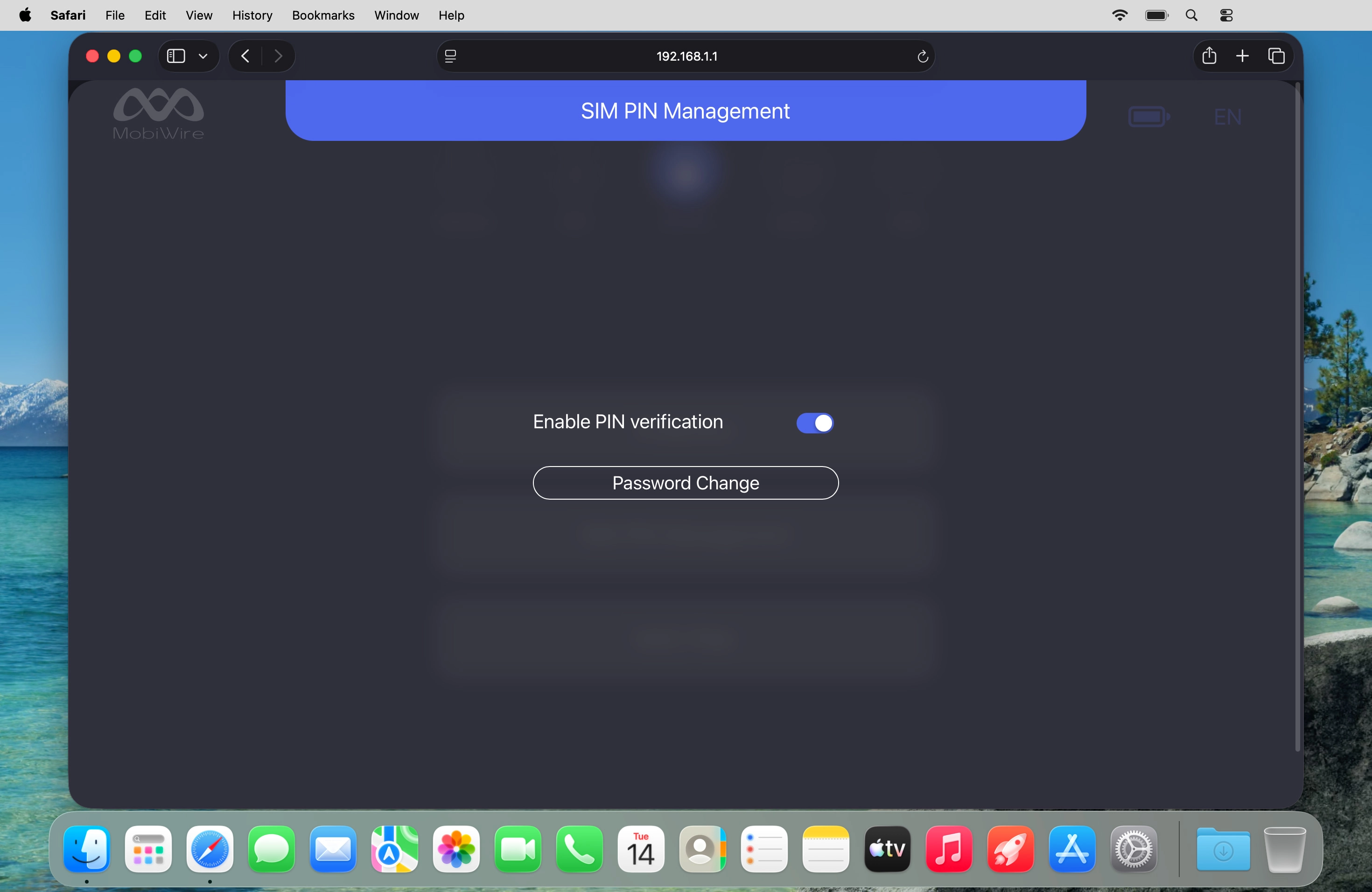
Click the indicator next to
Step 3 of 5

2. Turn use of PIN on or off

Click the indicator next to "Enable PIN verification" to turn the function on or off.
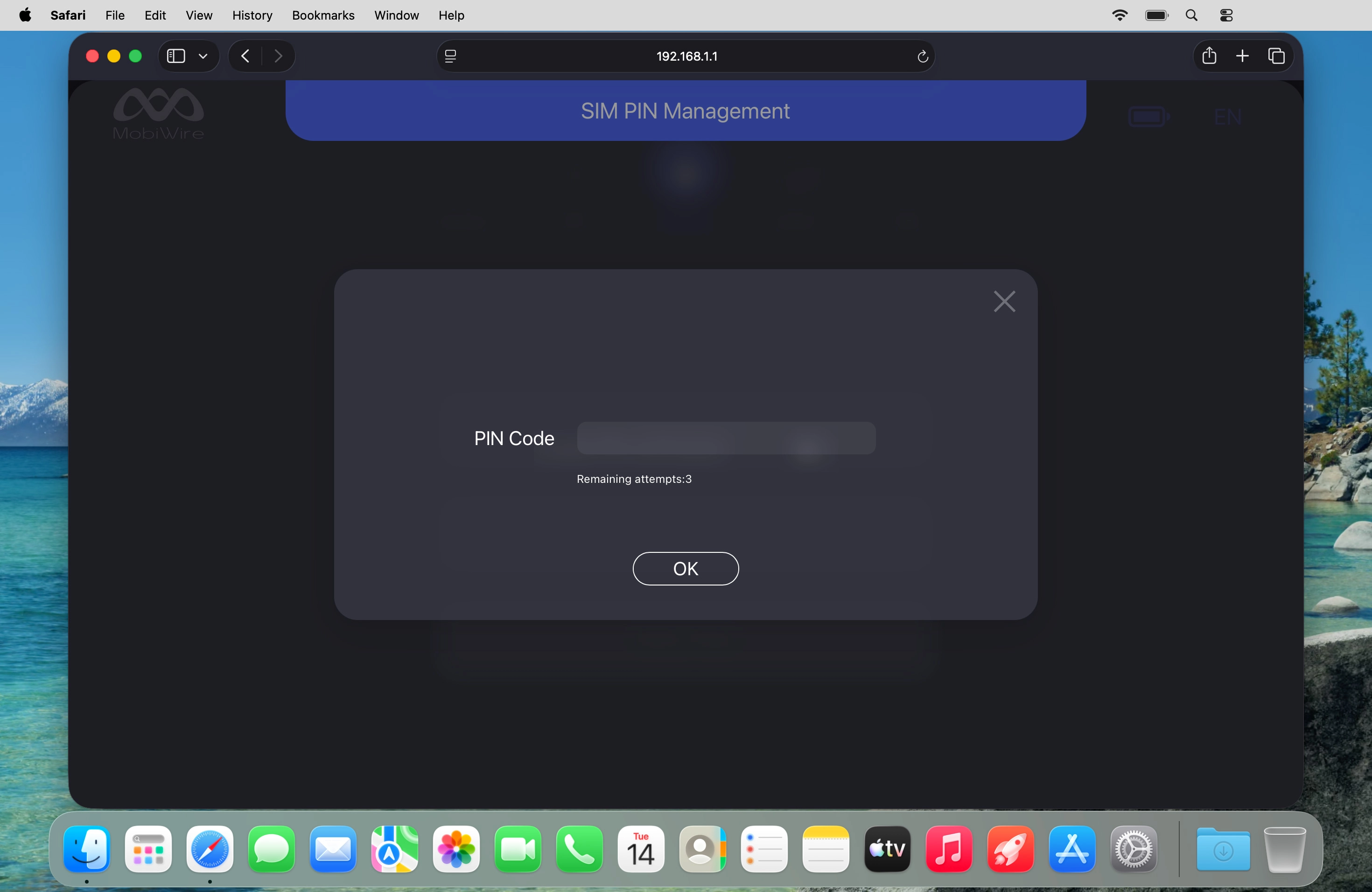
Click the field next to
Step 4 of 5

2. Turn use of PIN on or off

Click the field next to "PIN Code" and key in your PIN.
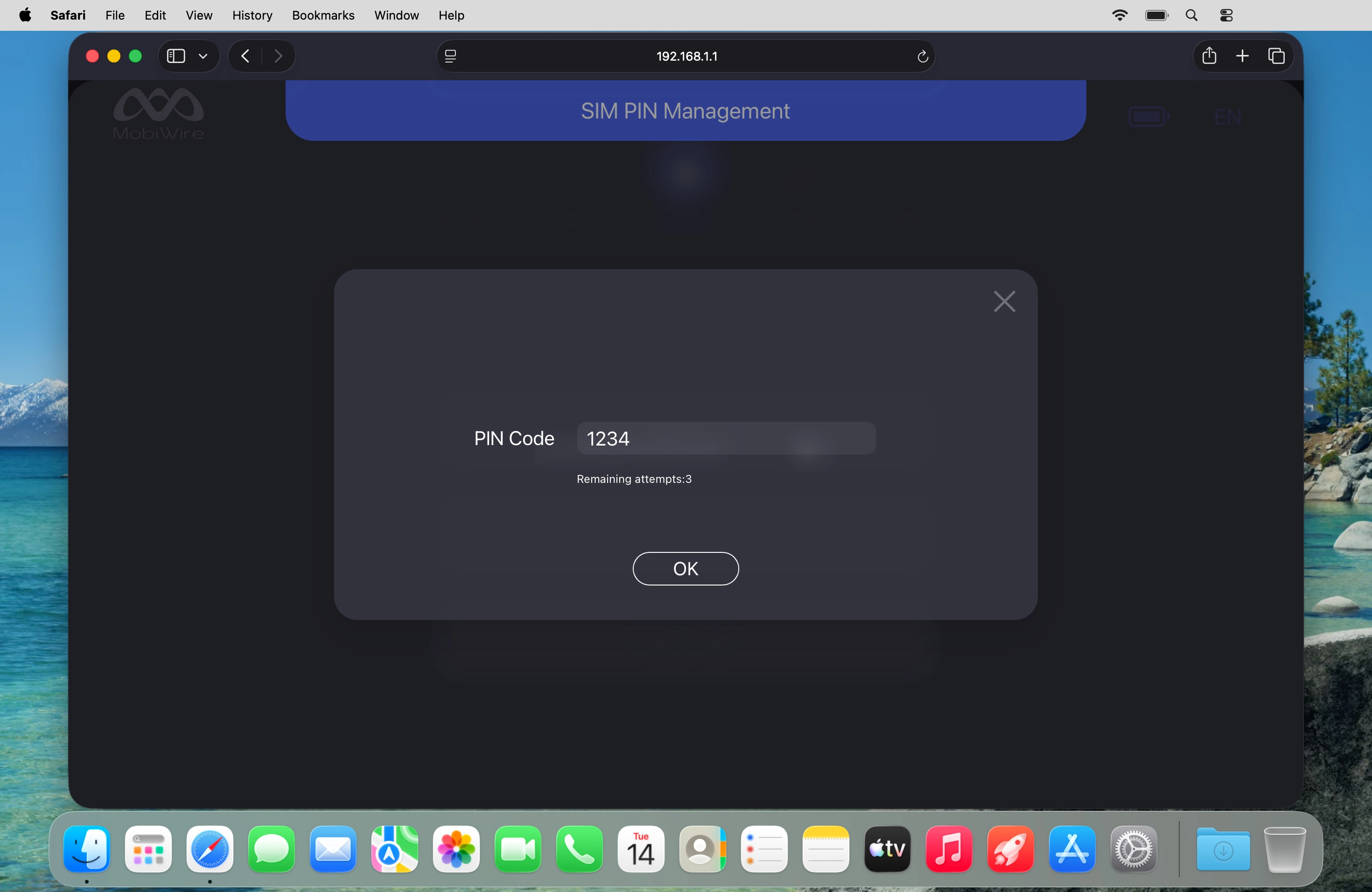
If an incorrect PIN is entered three times in a row, your SIM will be blocked. To unblock your SIM, you'll need to key in your PUK. The PUK can be obtained by contacting customer services. Please note: If you key in the wrong PUK ten times in a row, your SIM will be blocked permanently. In this case, you need a new SIM from Vodafone.
Click OK.
Step 5 of 5

2. Turn use of PIN on or off

Click OK.

1. Find "SIM PIN Management"

Click Security.
Click SIM PIN Management.

2. Turn use of PIN on or off

Click the indicator next to "Enable PIN verification" to turn the function on or off.
Click the field next to "PIN Code" and key in your PIN.
If an incorrect PIN is entered three times in a row, your SIM will be blocked. To unblock your SIM, you'll need to key in your PUK. The PUK can be obtained by contacting customer services. Please note: If you key in the wrong PUK ten times in a row, your SIM will be blocked permanently. In this case, you need a new SIM from Vodafone.
Click OK.

Thank you for your evaluation!

Get information on...

Or select...

Another device