Vodafone Pocket WiFi® 6 CM52 5G

Vodafone Pocket WiFi® 6 CM52 5G

Mac OS Tahoe

I can't establish a wireless connection to my Vodafone Pocket WiFi® 6 CM52 5G Mac OS Tahoe

Cause 3 of 3: The entered password is incorrect

If you have keyed in a wrong password, you can't establish a wireless connection to your router.

Solution: See how to find the password for your router.

Step 1 of 7

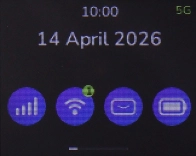
See the router login information

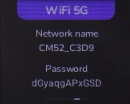
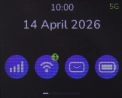
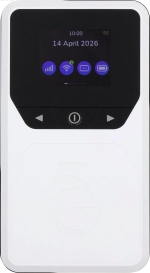
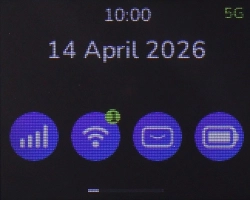
Press the Left function key the necessary number of times to select "WiFi 5G".
Step 2 of 7

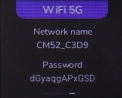
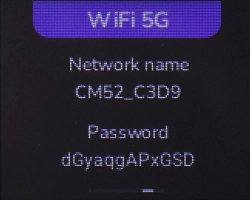
See the router login information

The login information is displayed.

Step 3 of 7

See the router login information

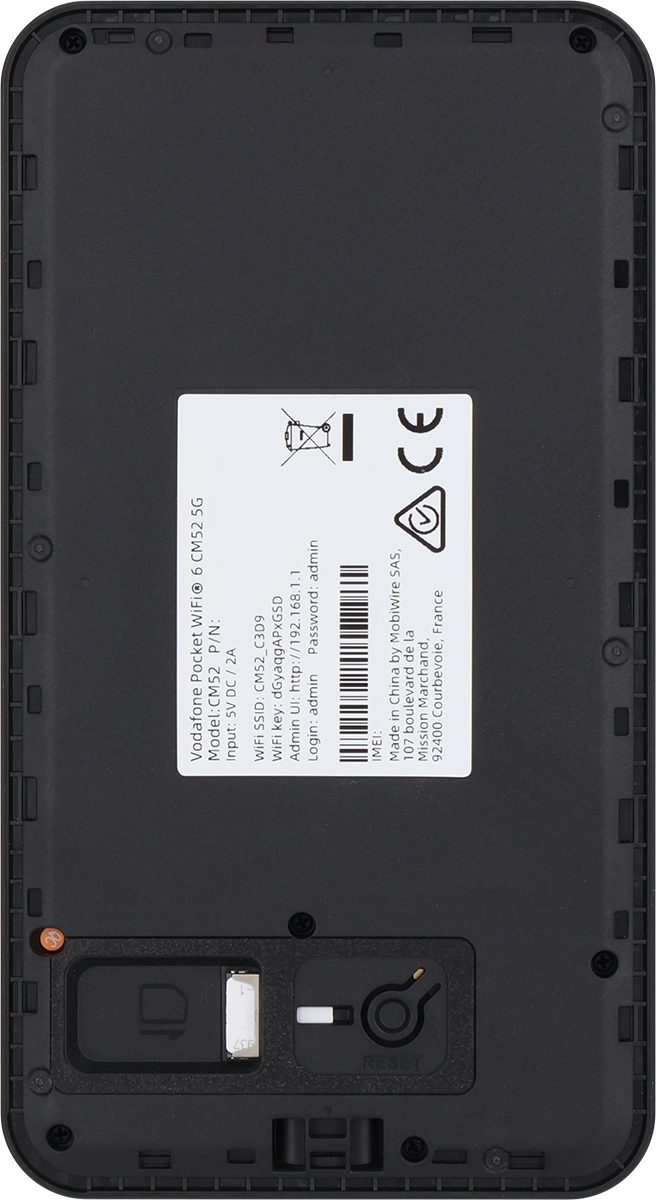
You can also find the login information on the inside of your router.

Step 4 of 7

Establish a connection to the internet

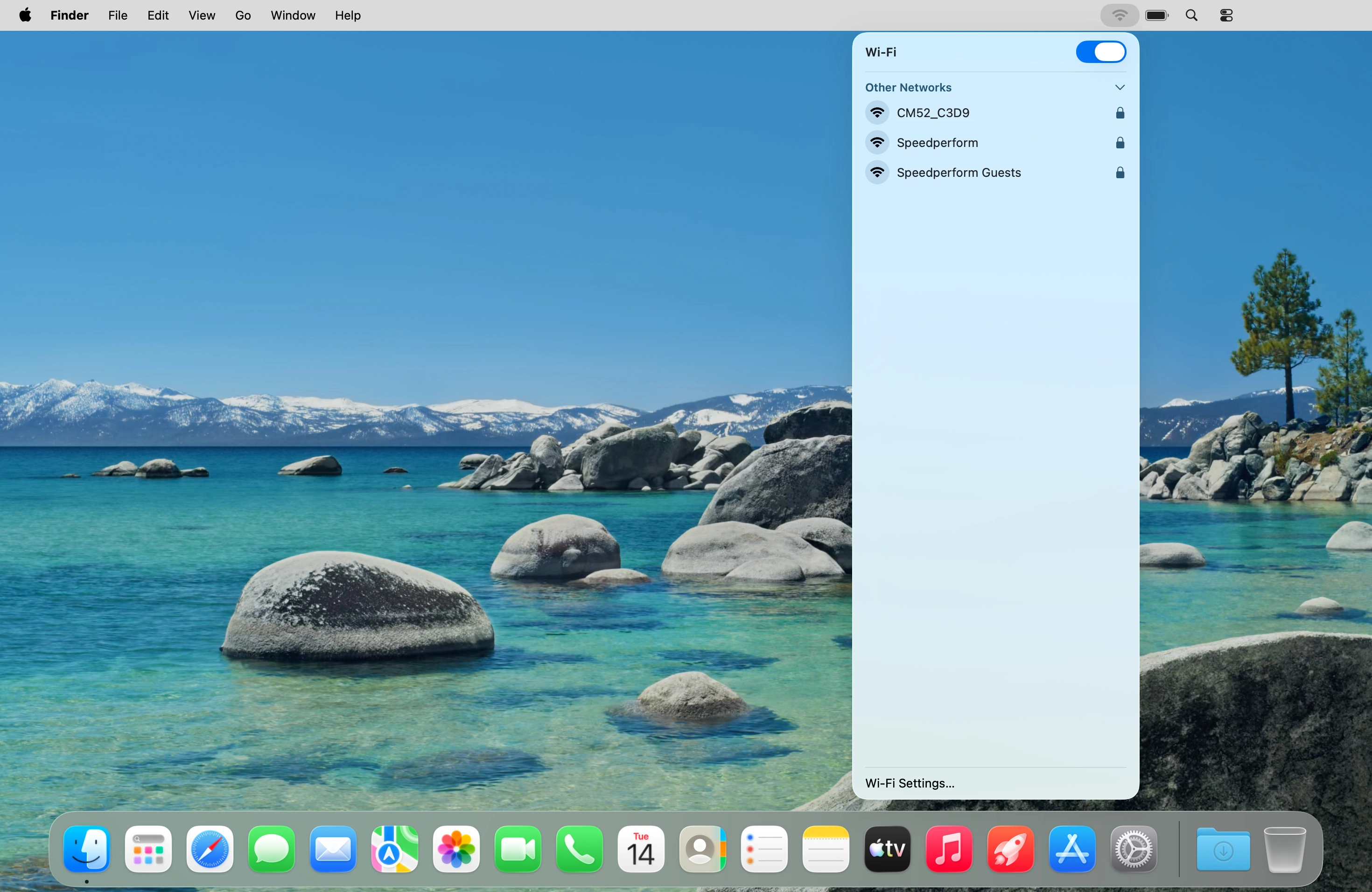
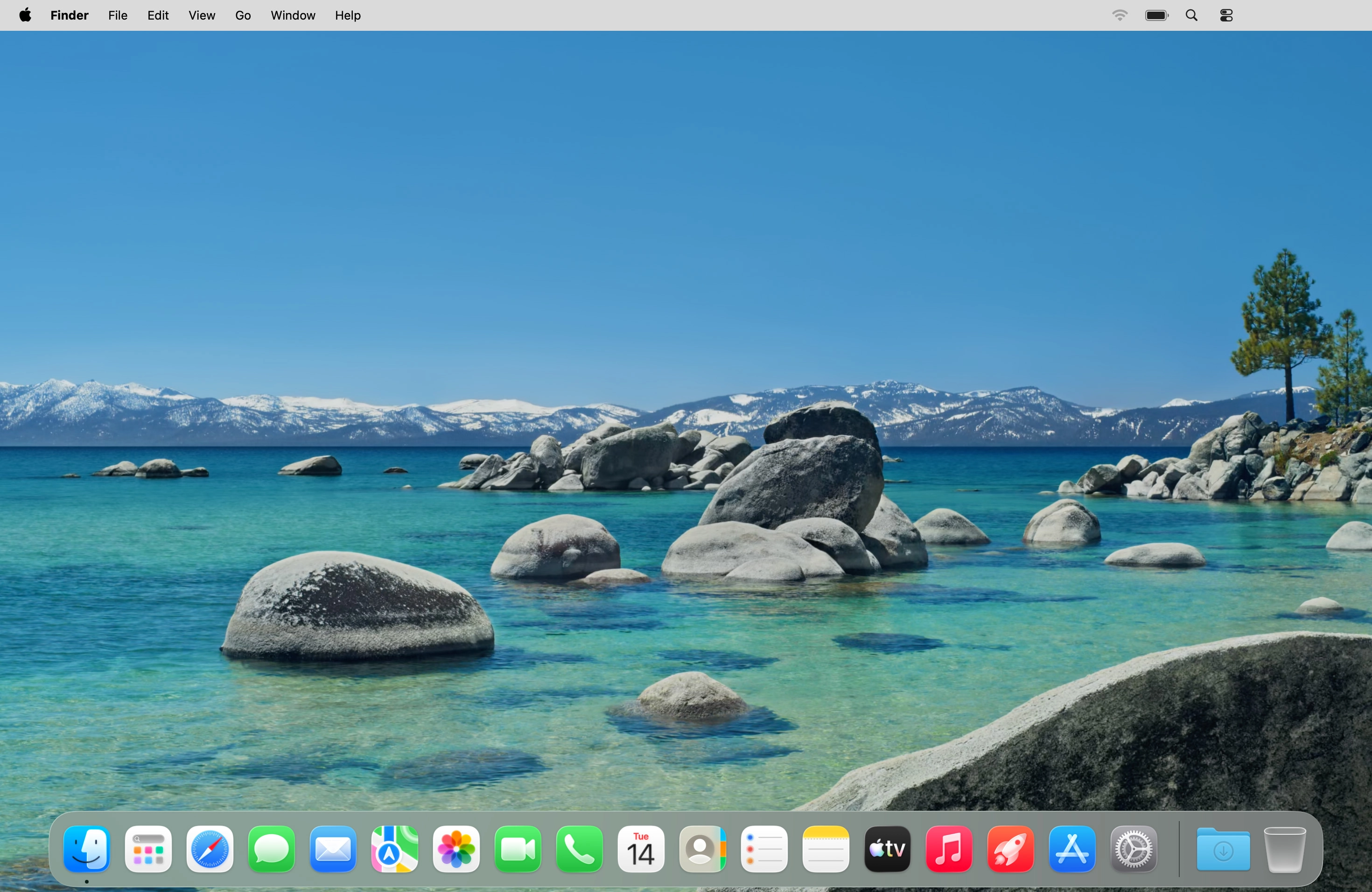
Do the following on your computer: Click the network icon.

Step 5 of 7

Establish a connection to the internet

Click Other Networks.

Step 6 of 7

Establish a connection to the internet

Click the name of your Wi-Fi hotspot.

Step 7 of 7

Establish a connection to the internet

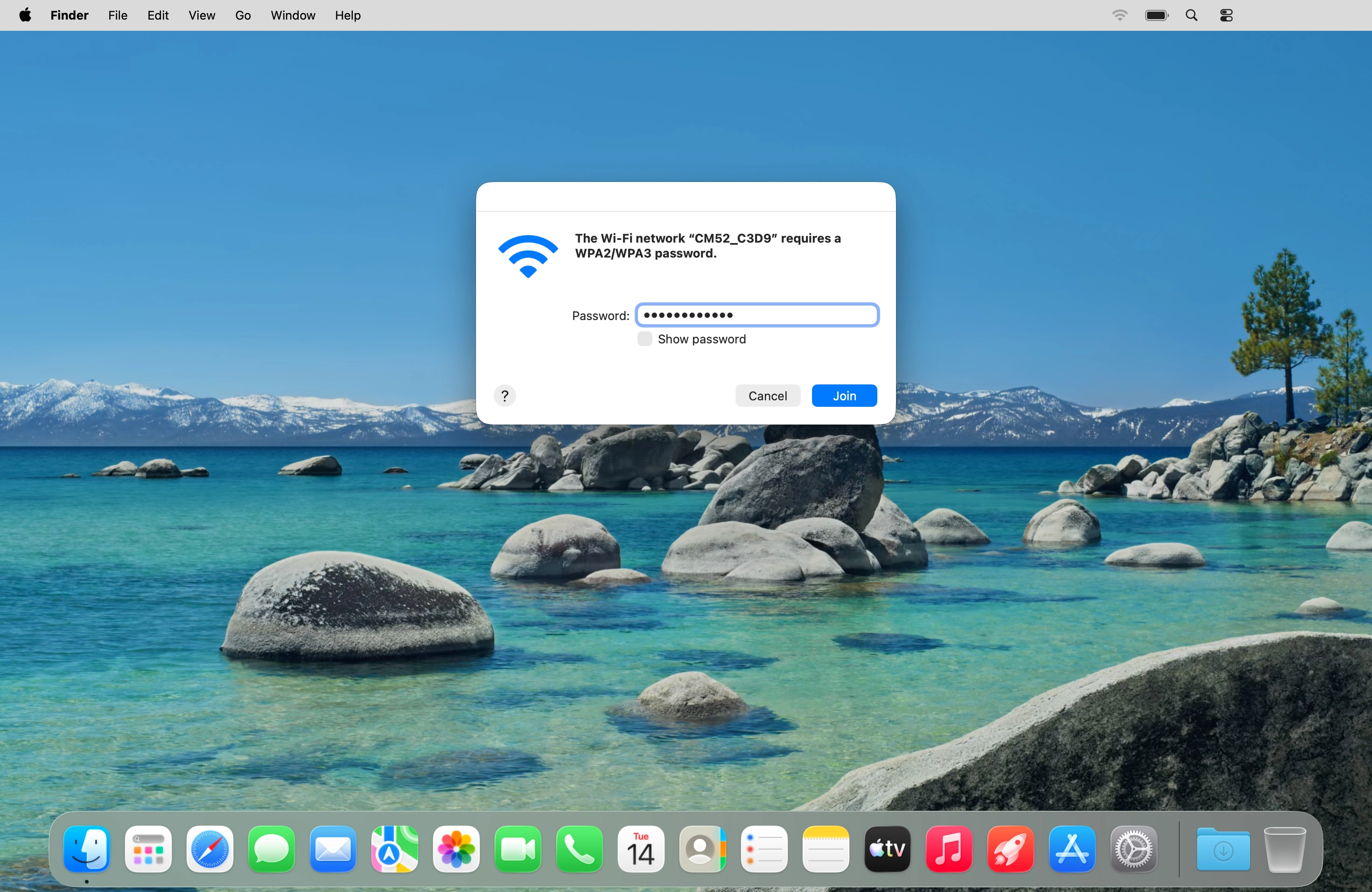
Key in the Wi-Fi password for your Wi-Fi hotspot and click Join.

1 See the router login information

Press the Left function key the necessary number of times to select "WiFi 5G".
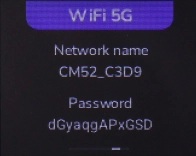
The login information is displayed.
You can also find the login information on the inside of your router.
2 Establish a connection to the internet

Do the following on your computer: Click the network icon.
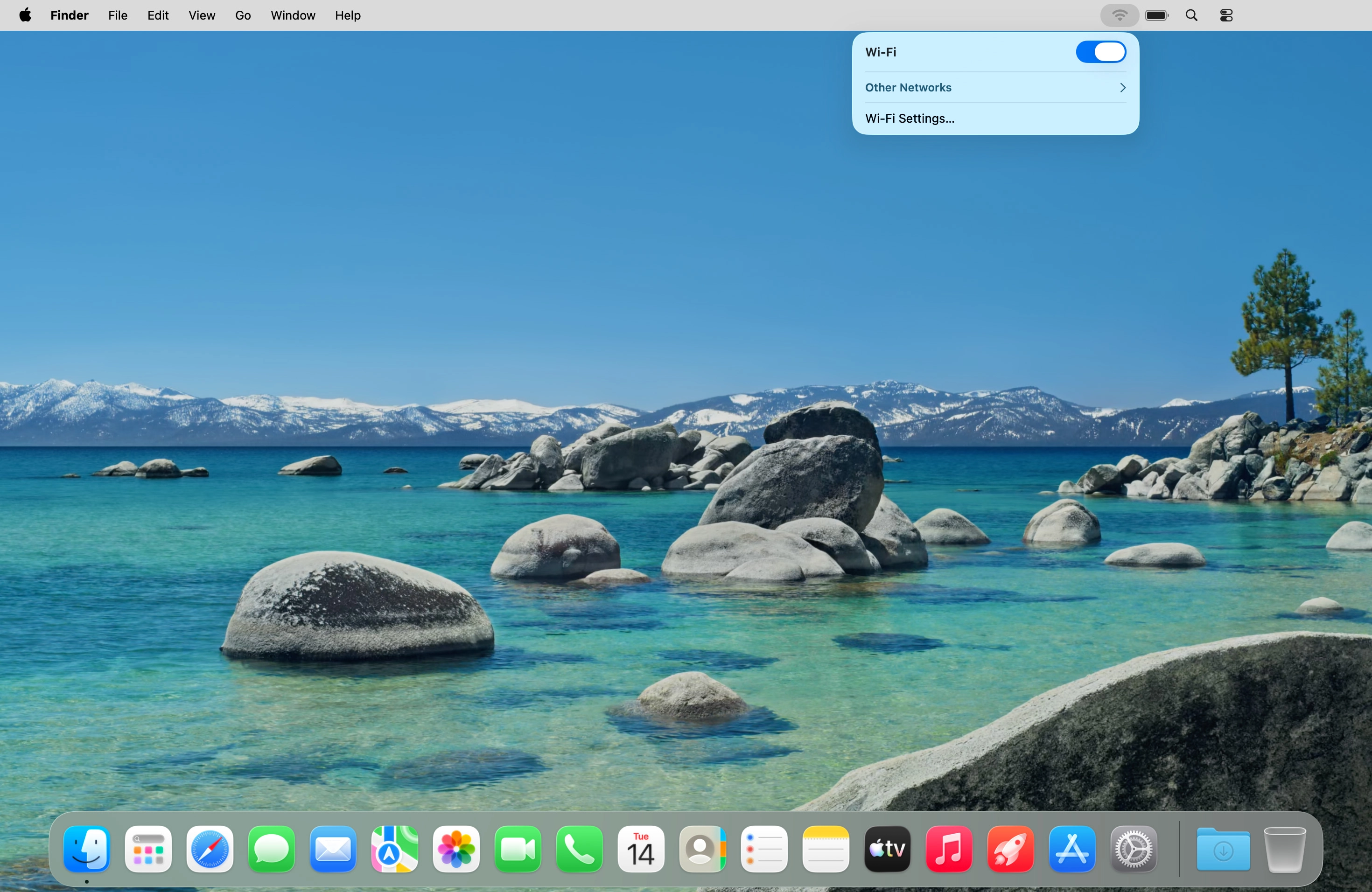
Click Other Networks.
Click the name of your Wi-Fi hotspot.
Key in the Wi-Fi password for your Wi-Fi hotspot and click Join.

Did this solve the problem?

Yes - All solved No - Go to next cause

Get information on...

Or select...

Another device