Vodafone Pocket WiFi® 6 CM52 5G

Vodafone Pocket WiFi® 6 CM52 5G

Mac OS Tahoe

My Vodafone Pocket WiFi® 6 CM52 5G Mac OS Tahoe can't find a network

Cause 6 of 6: The selected network is out of range

If you've set your router to use a specific network, it can't get a network connection if the selected network is out of range.

Solution: Turn on automatic network selection.

Step 1 of 7

Find "Mobile Network"

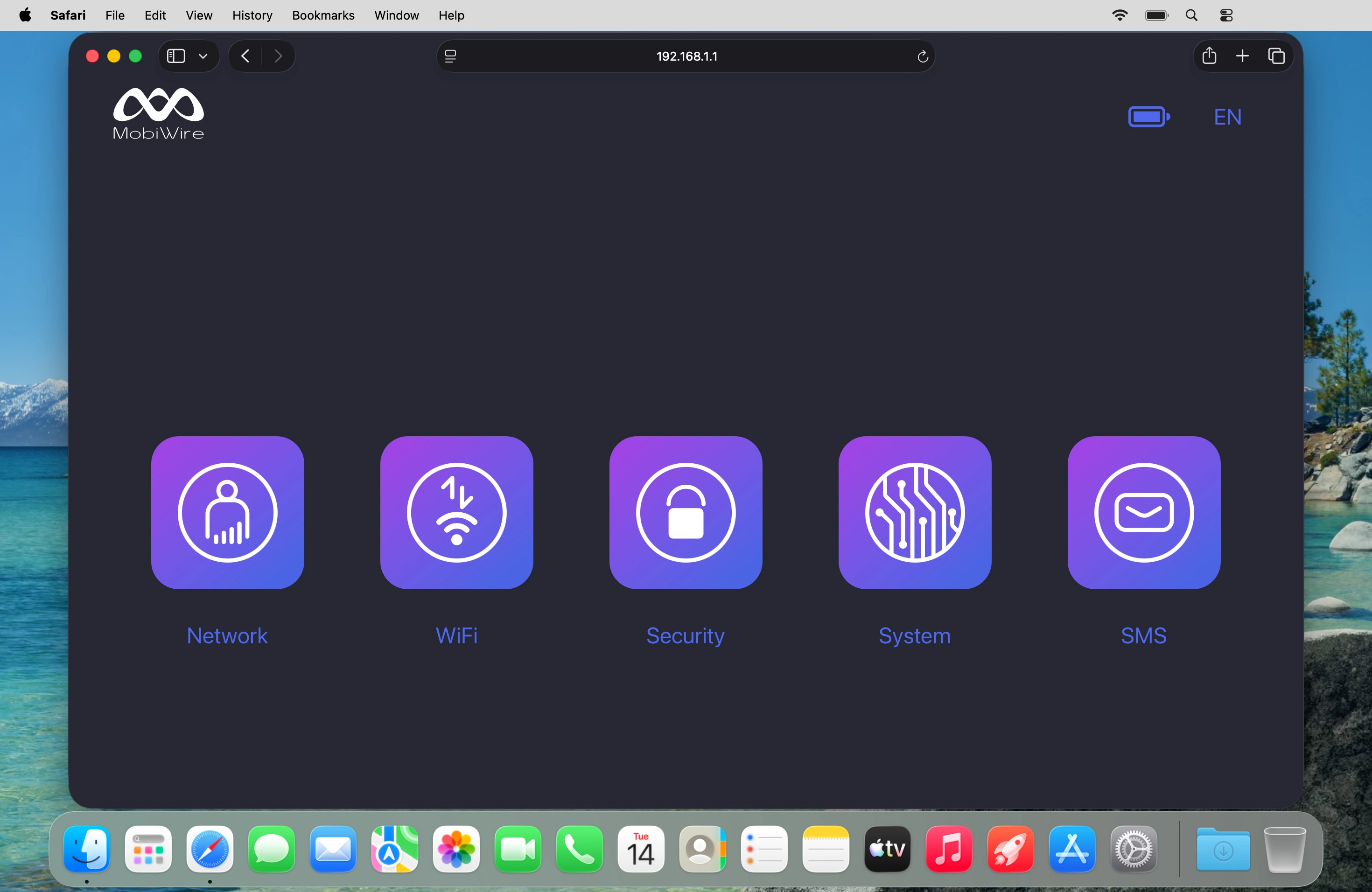
Click Network.
Step 2 of 7

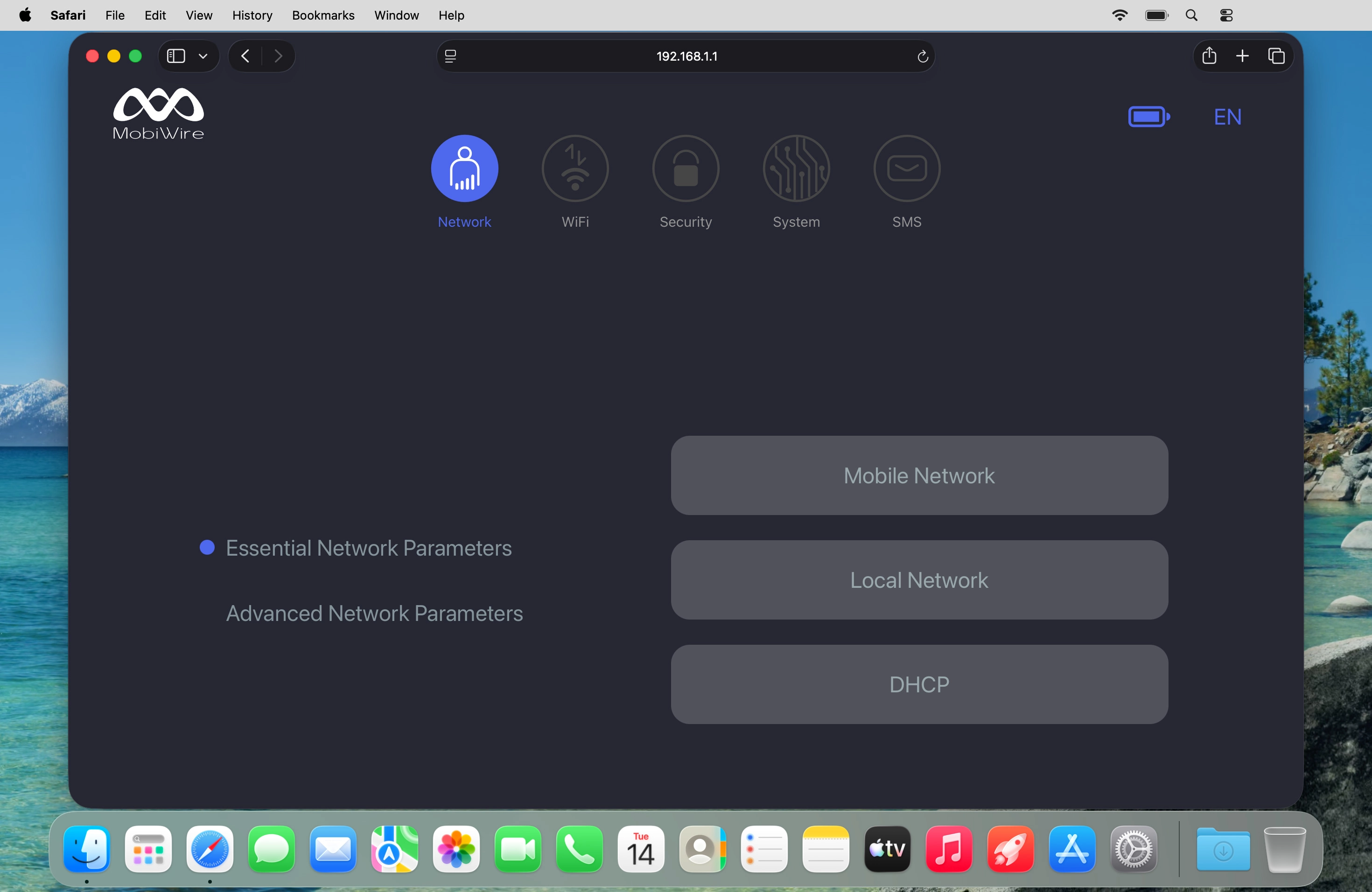
Find "Mobile Network"

Click Mobile Network.
Step 3 of 7

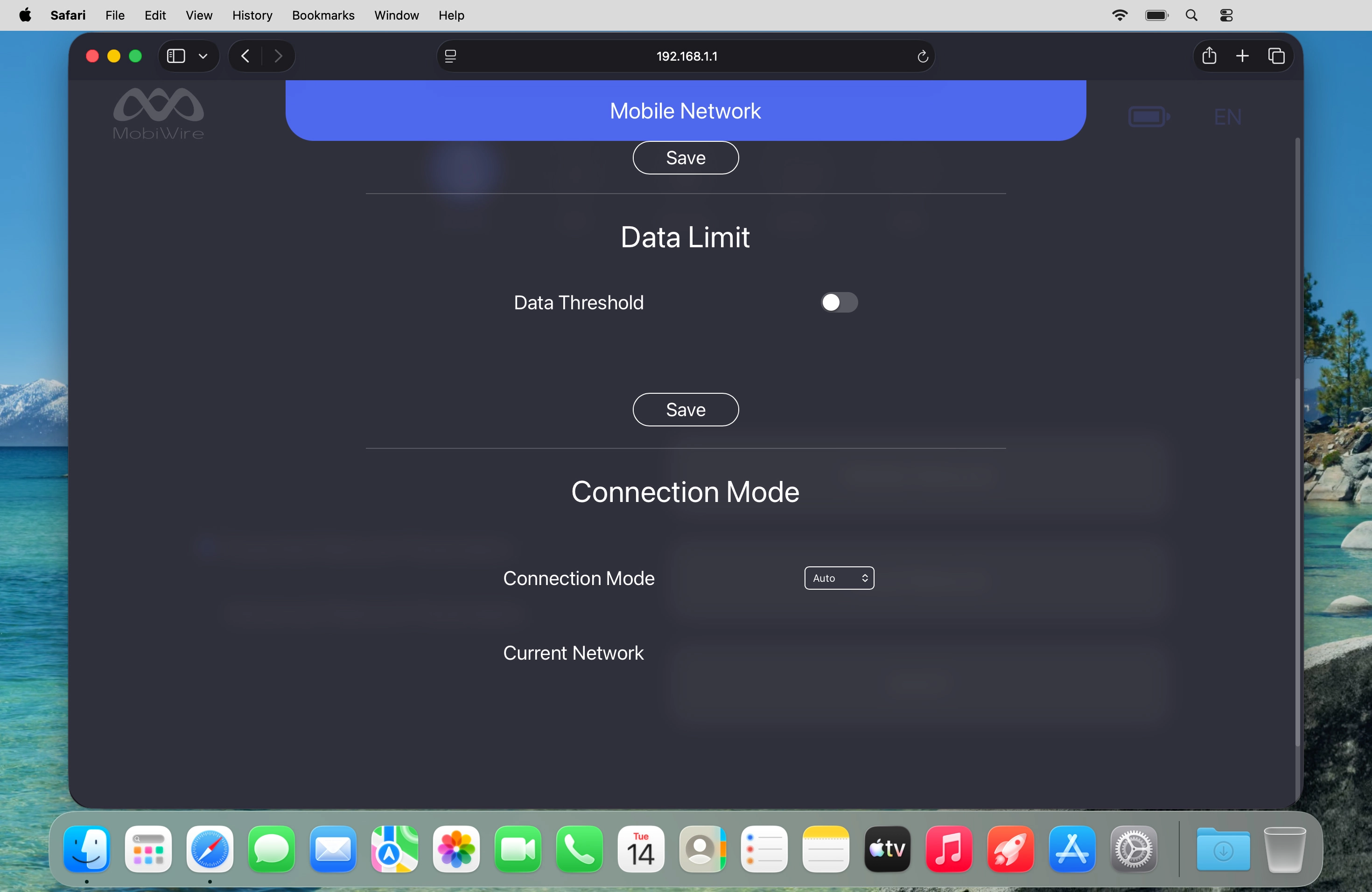
Select network manually

Click the drop down list next to "Connection Mode".
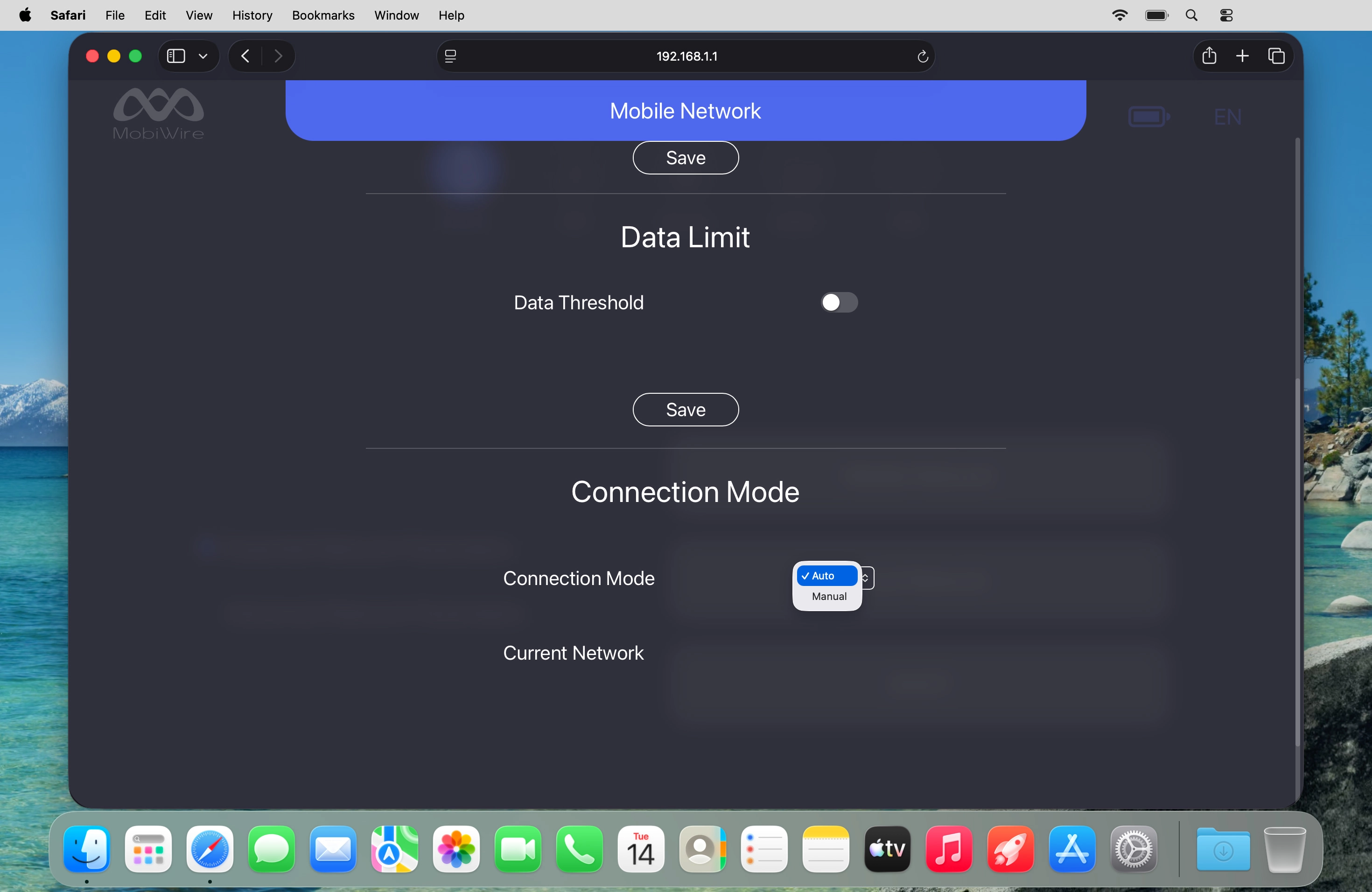
Step 4 of 7

Select network manually

Click Manual and wait while your router searches for available networks.
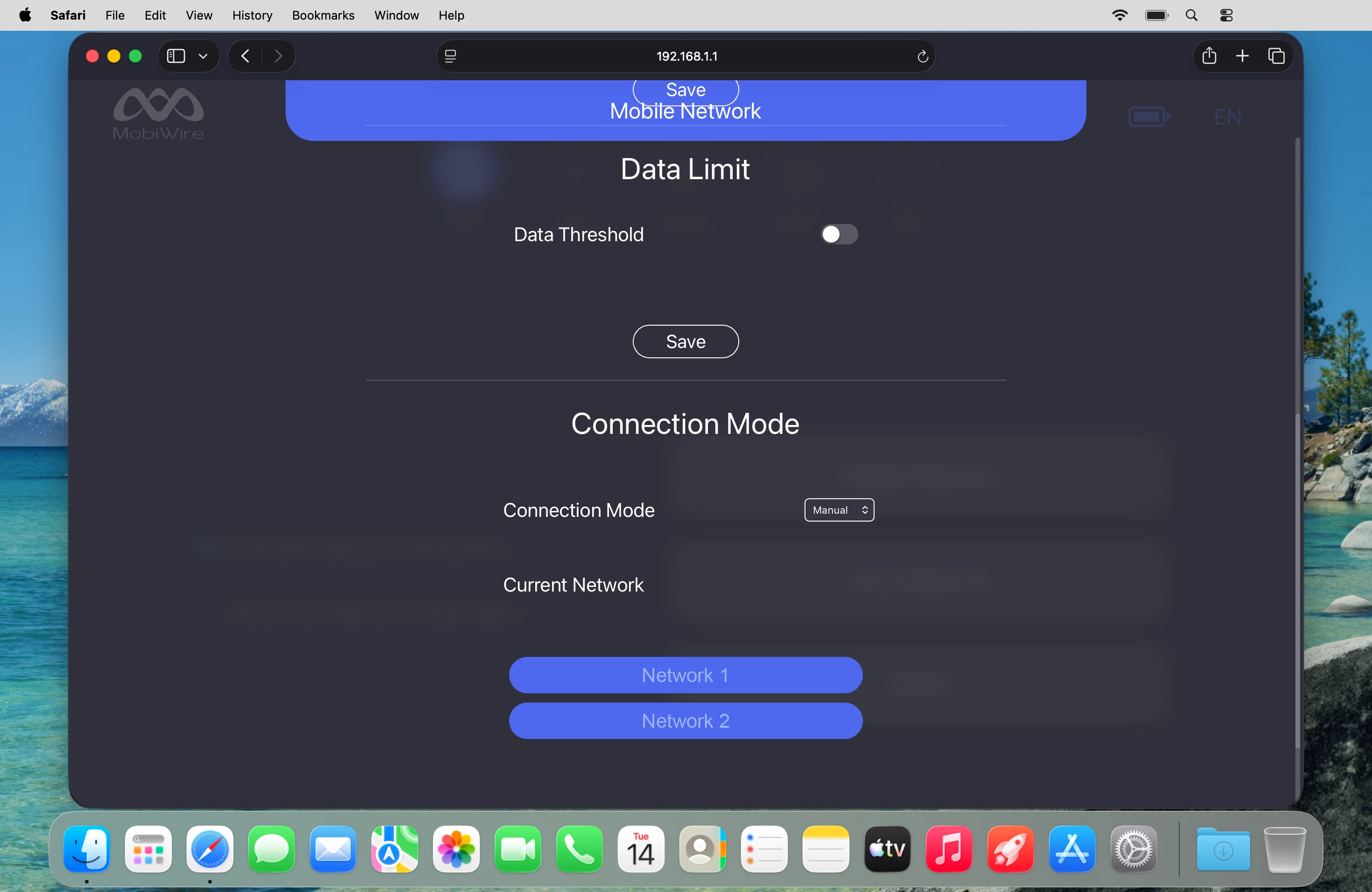
Step 5 of 7

Select network manually

Click the required network.

Step 6 of 7

Select network automatically

Click the drop down list next to "Connection Mode".
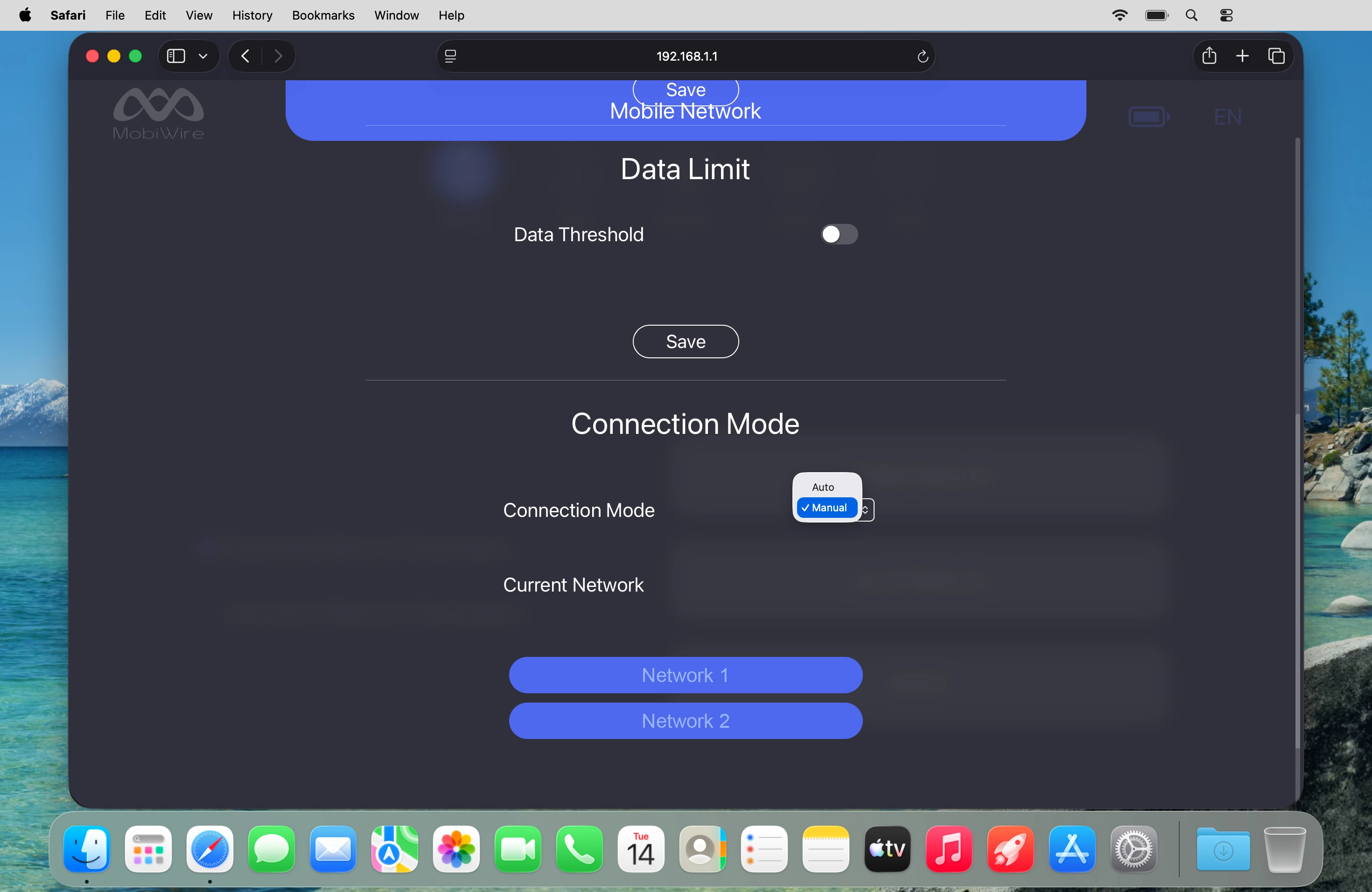
Step 7 of 7

Select network automatically

Click Auto.

1 Find "Mobile Network"

Click Network.
Click Mobile Network.

2 Select network manually

Click the drop down list next to "Connection Mode".
Click Manual and wait while your router searches for available networks.
Click the required network.

3 Select network automatically

Click the drop down list next to "Connection Mode".
Click Auto.

Did this solve the problem?

Yes - All solved No - Go to next cause

Get information on...

Or select...

Another device