Vodafone Pocket WiFi® 6 CM52 5G

Vodafone Pocket WiFi® 6 CM52 5G

I can't use the internet connection on my Vodafone Pocket WiFi® 6 CM52 5G Windows 11

Cause 1 of 2: Your router hasn't been correctly set up for internet

You can't connect to the internet if your router is using a wrong APN.

Solution: Set up your router for internet.

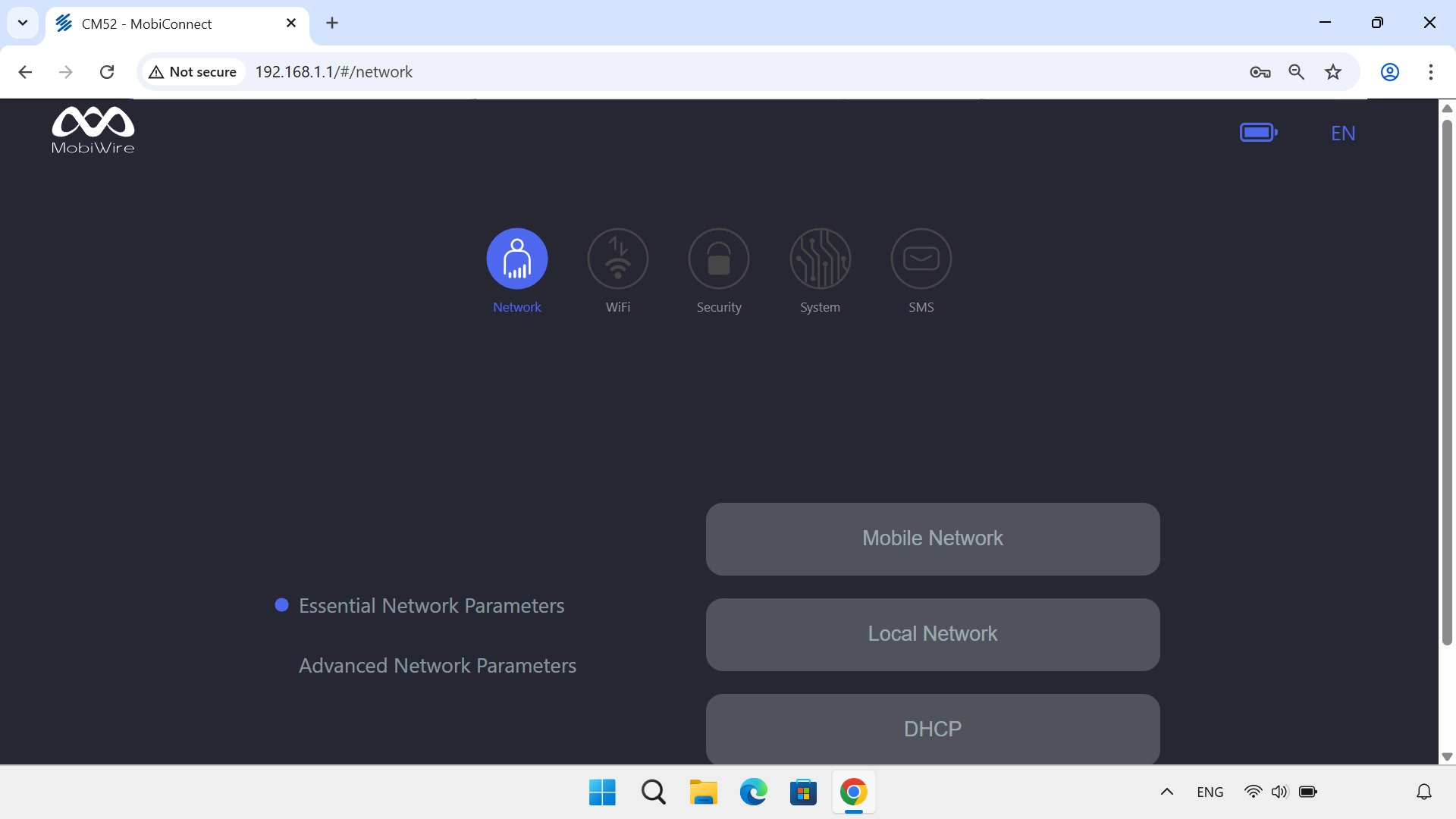
Step 1 of 12

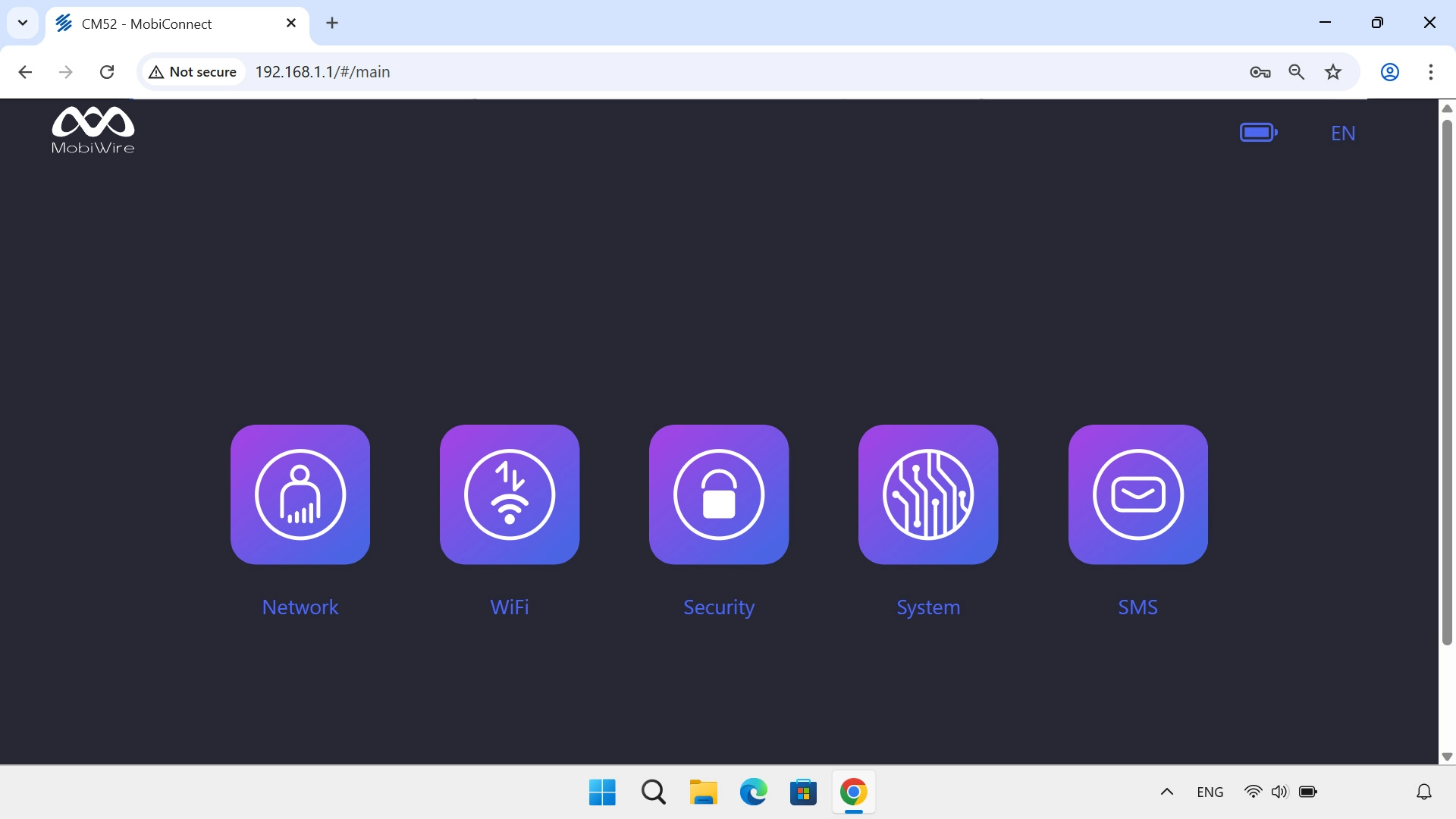
Find "APN"

Click Network.
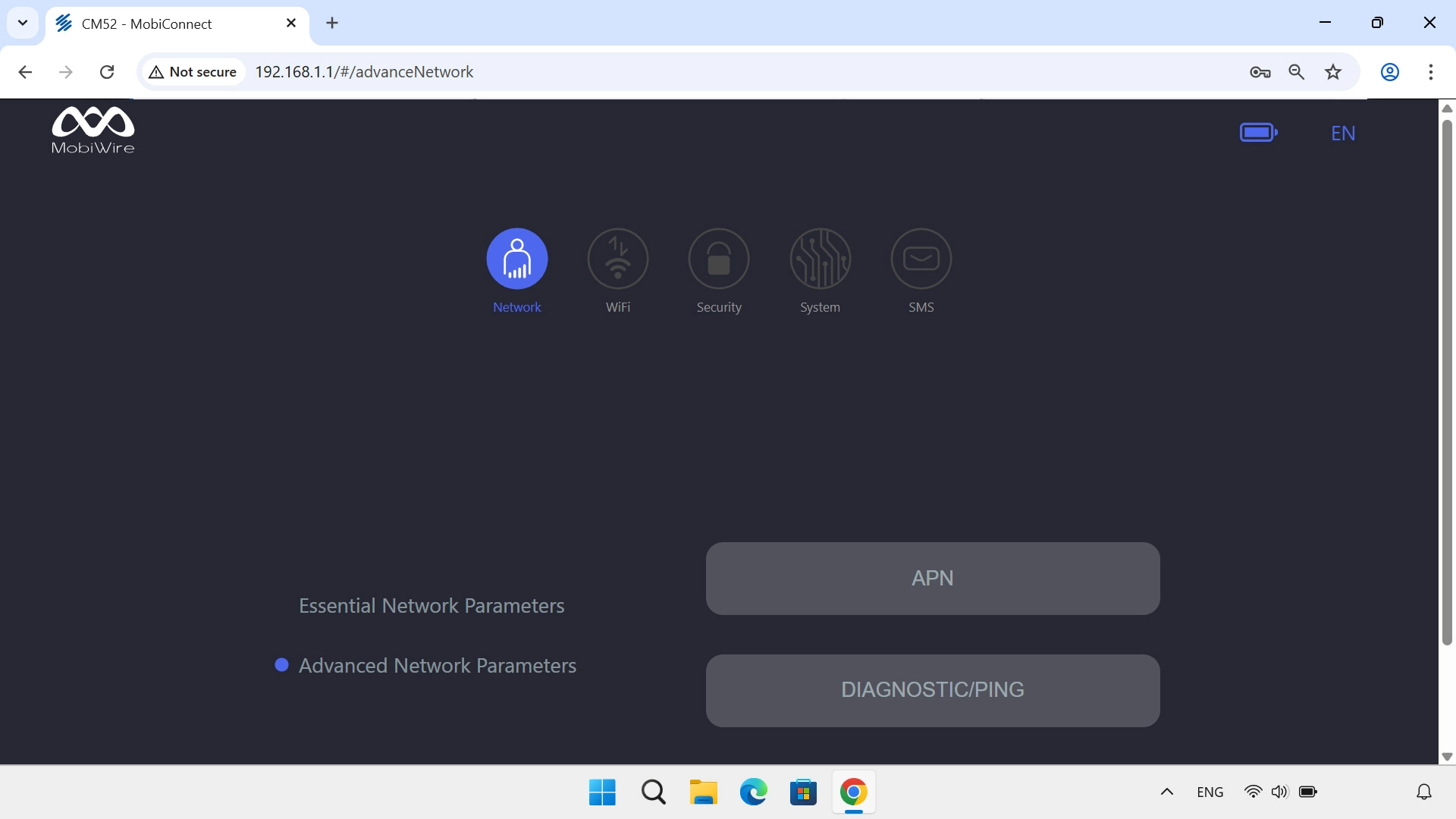
Step 2 of 12

Find "APN"

Click Advanced Network Parameters.
Step 3 of 12

Find "APN"

Click APN.

Step 4 of 12

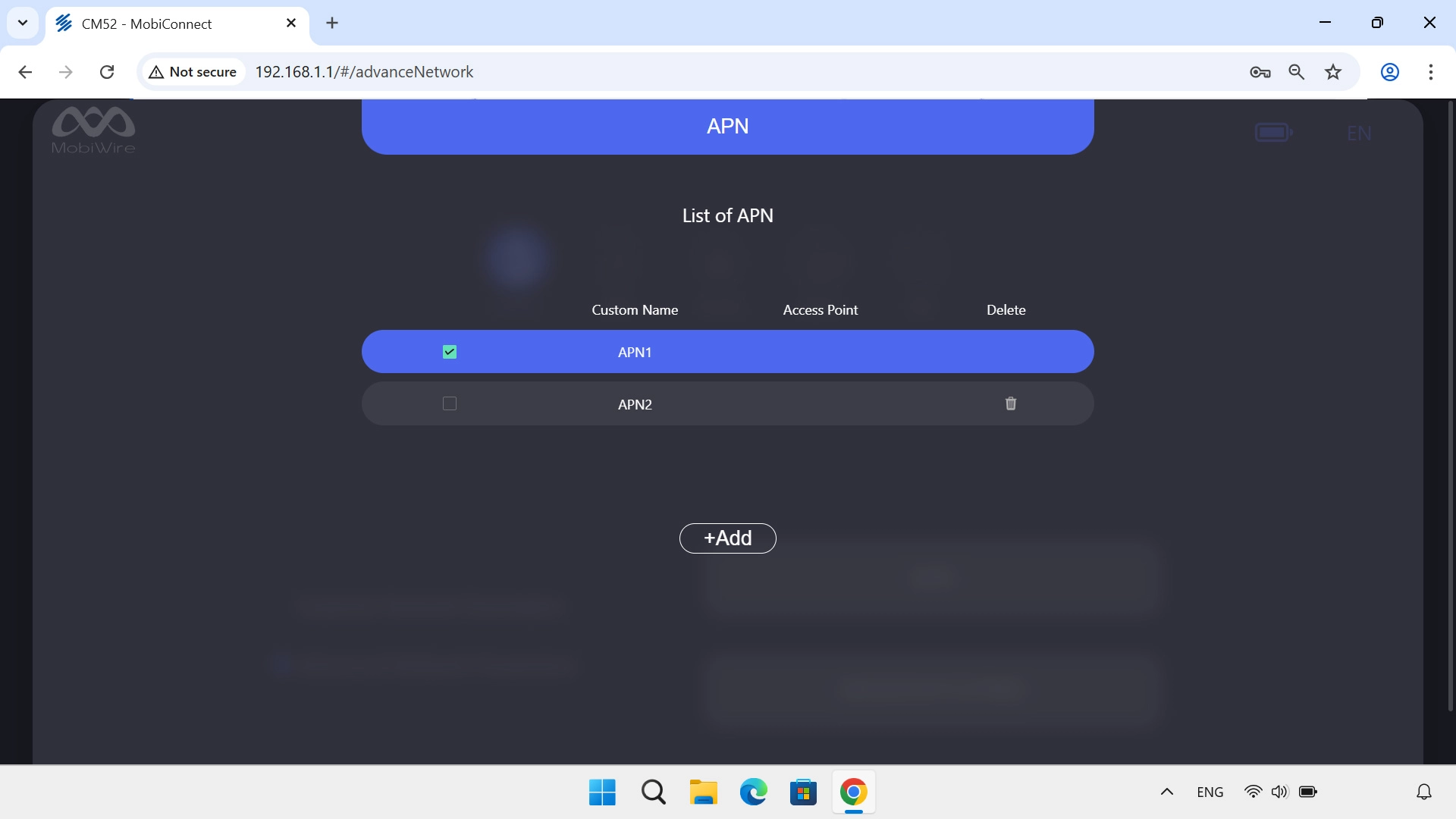
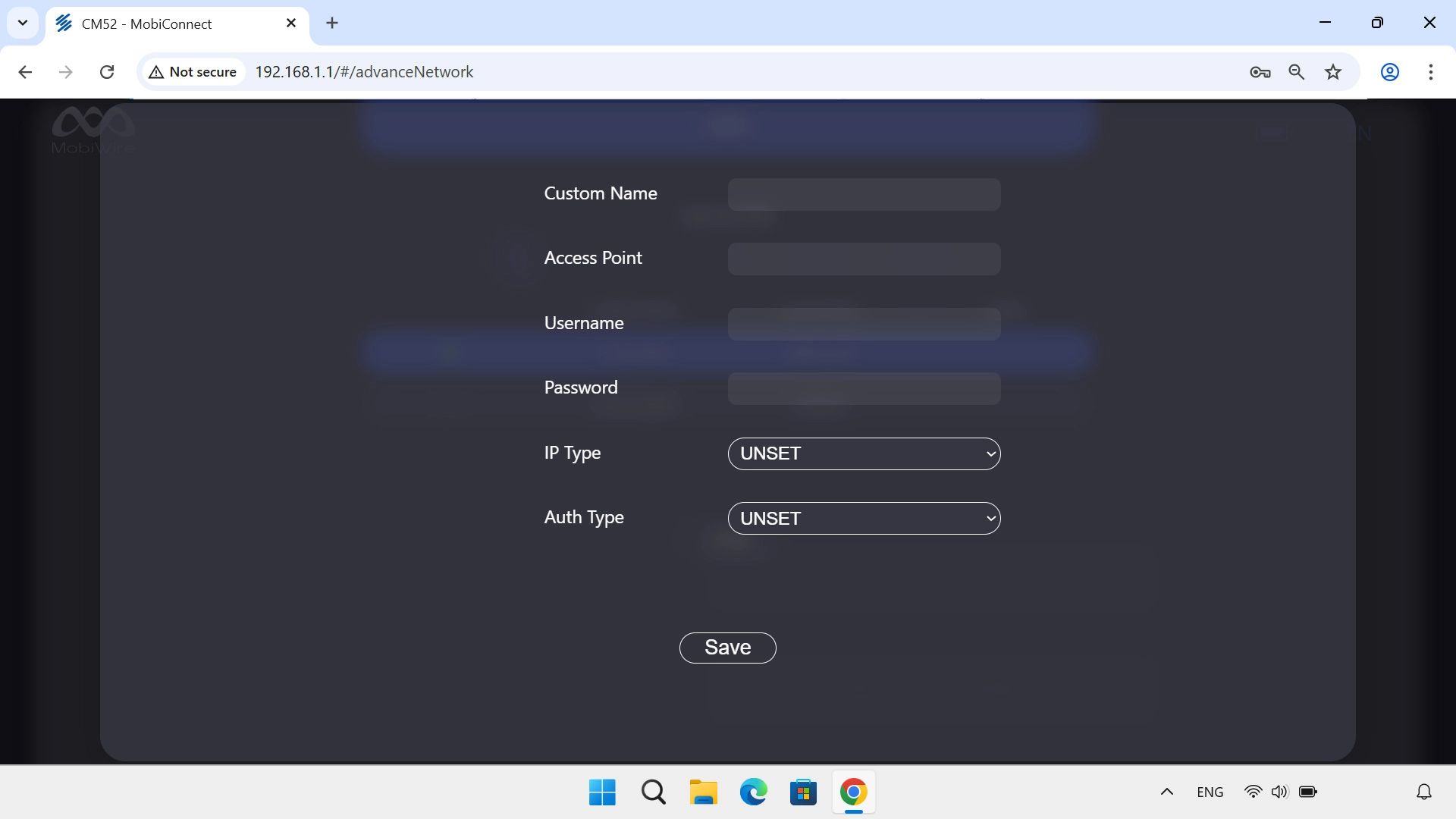
Create new data connection

Click +Add.
Vodafone Internet
Step 5 of 12

Create new data connection

Click the field next to "Custom Name" and key in Vodafone Internet.

vfinternet.au
Step 6 of 12

Enter APN

Click the field next to "Access Point" and key in vfinternet.au.

Step 7 of 12

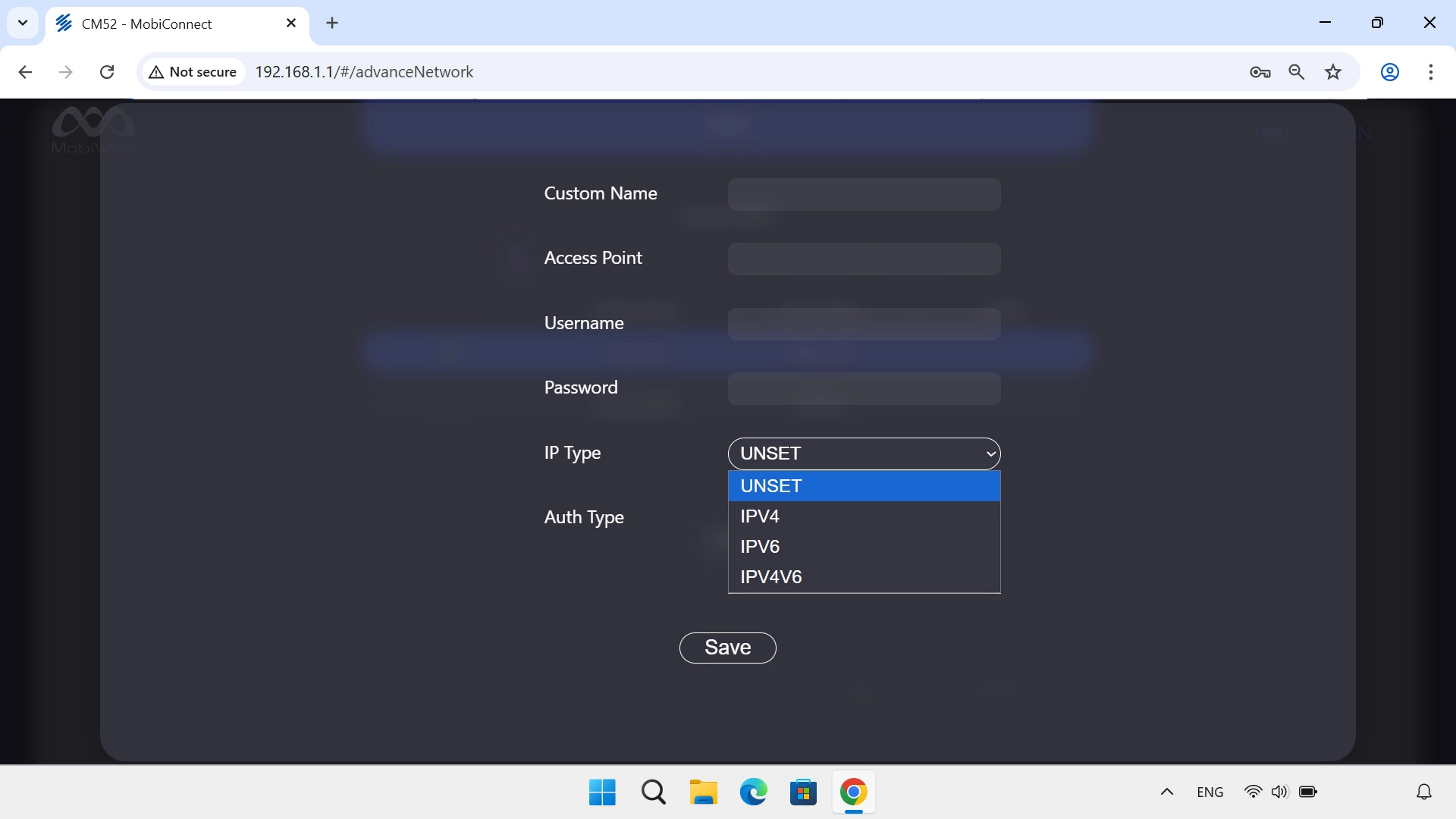
Select IP type

Click the drop down list next to "IP Type".
Step 8 of 12

Select IP type

Click the required setting.

Step 9 of 12

Select authentication type

Click the drop down list next to "Auth Type".
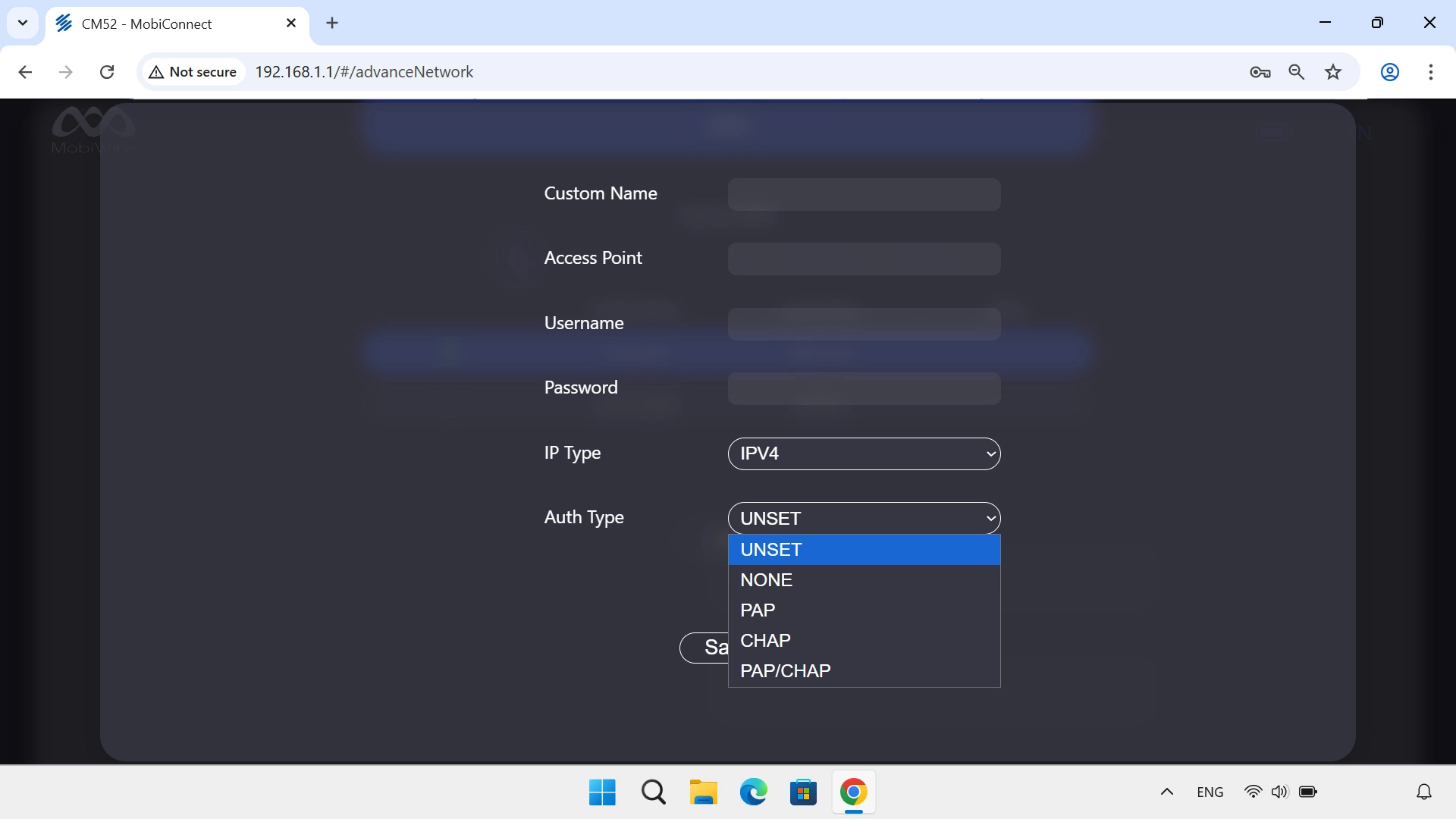
Step 10 of 12

Select authentication type

Click NONE.
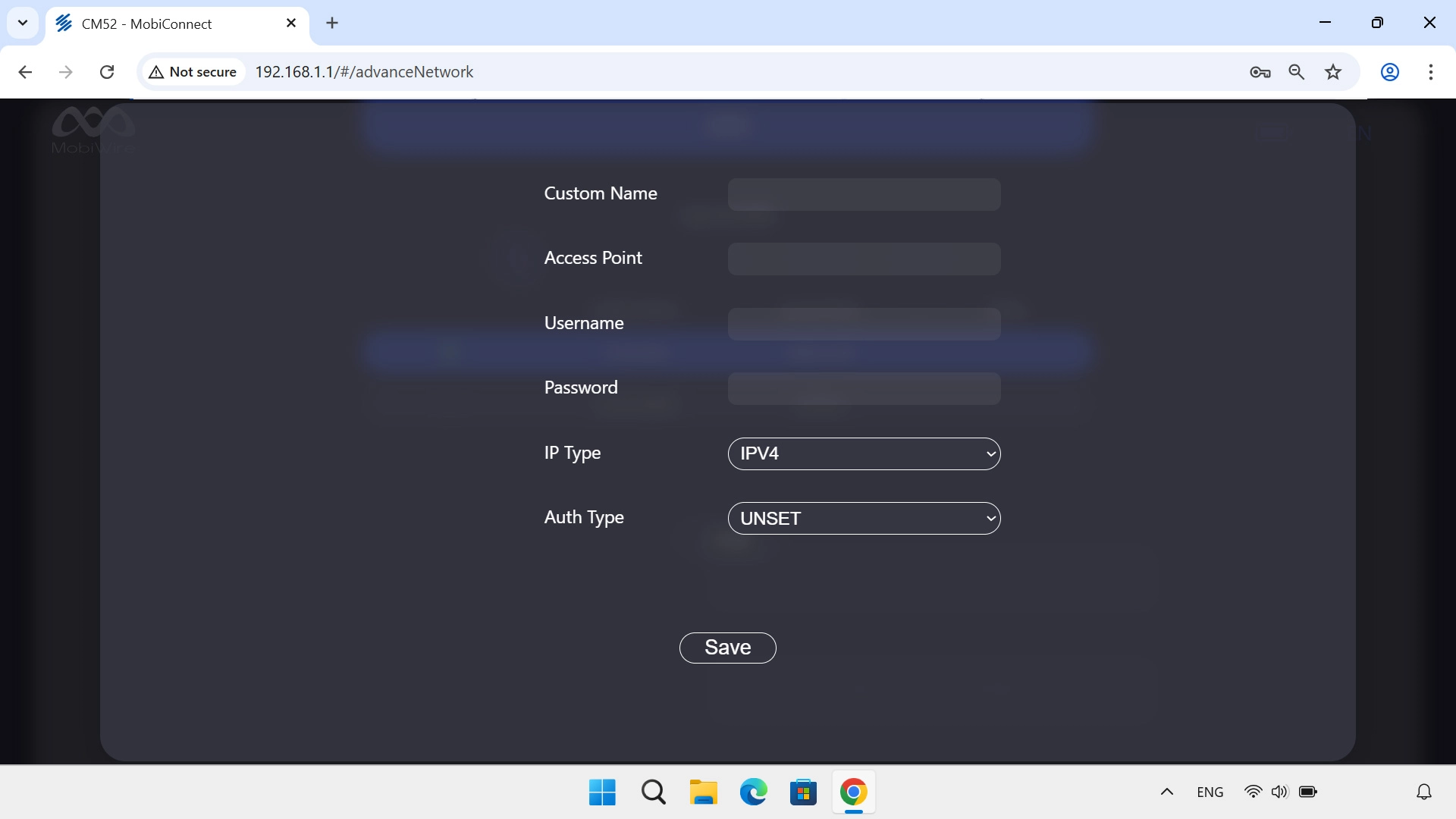
Step 11 of 12

Save settings

Click Save.

Step 12 of 12

Select data connection

Click the field next to the required data connection.

1 Find "APN"

Click Network.
Click Advanced Network Parameters.
Click APN.

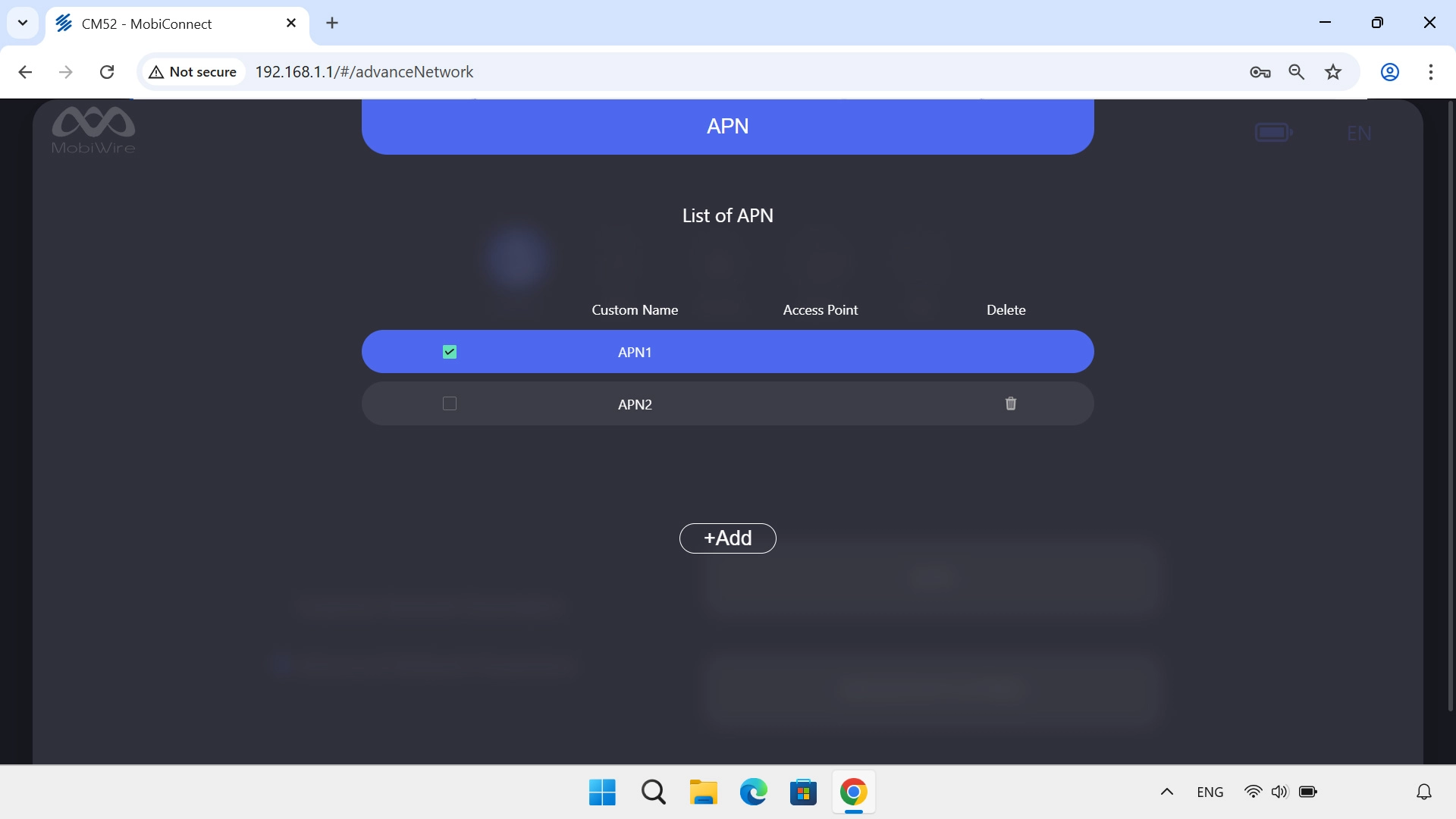
2 Create new data connection

Click +Add.
Click the field next to "Custom Name" and key in Vodafone Internet.
Vodafone Internet

3 Enter APN

Click the field next to "Access Point" and key in vfinternet.au.
vfinternet.au

4 Select IP type

Click the drop down list next to "IP Type".
Click the required setting.

5 Select authentication type

Click the drop down list next to "Auth Type".
Click NONE.

6 Save settings

Click Save.

7 Select data connection

Click the field next to the required data connection.

Did this solve the problem?

Yes - All solved No - Go to next cause

Get information on...

Or select...

Another device