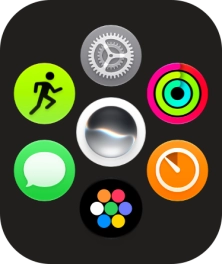
Select email account
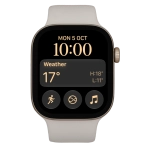
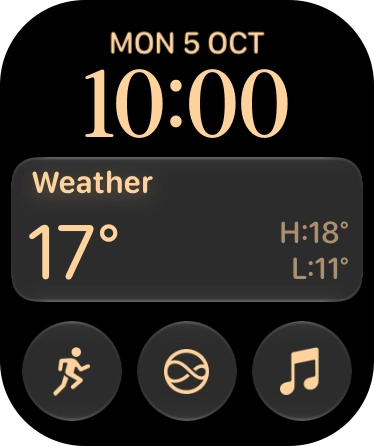
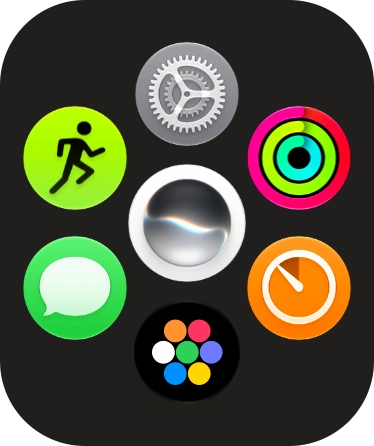
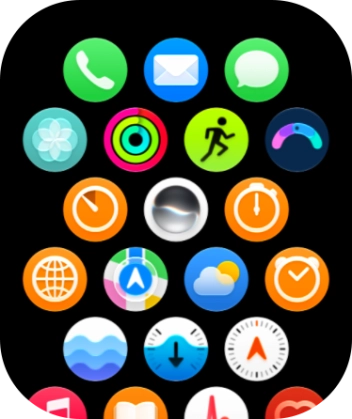
Press the Digital Crown.
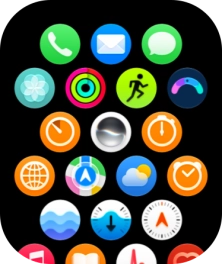
Select email account
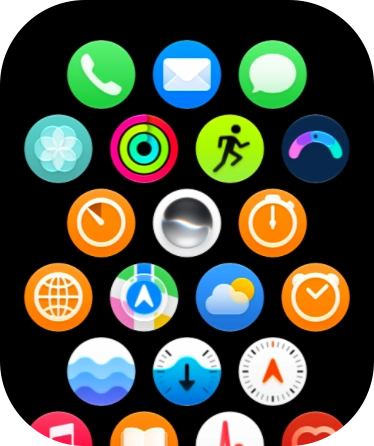
Slide your finger upwards on the screen.
Select email account
Press the email message icon.
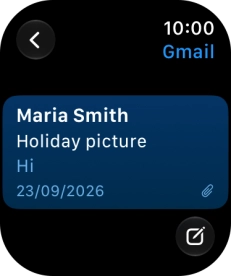
Select email account
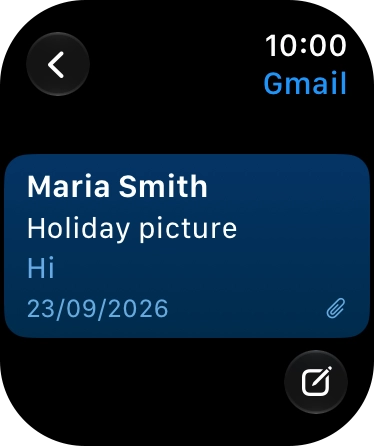
Press arrow left.
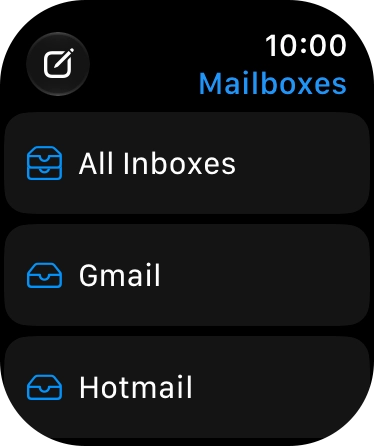
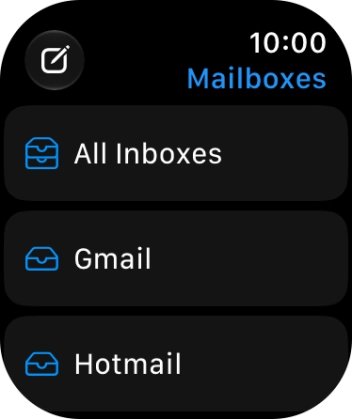
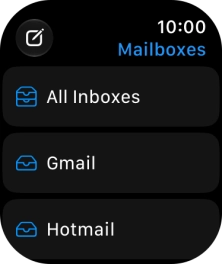
Select email account
Press the required email account.
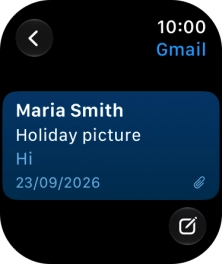
Read email message
Press the required email message.
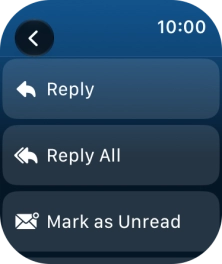
Reply to email message using voice input
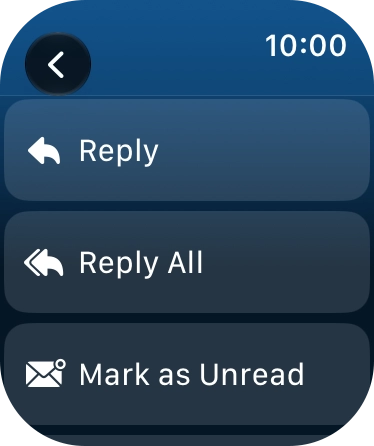
Press Reply.
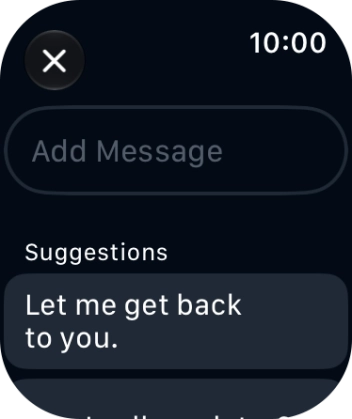
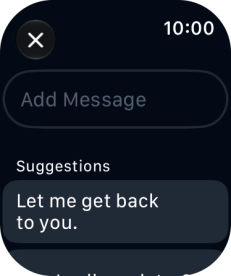
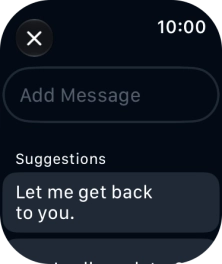
Reply to email message using voice input
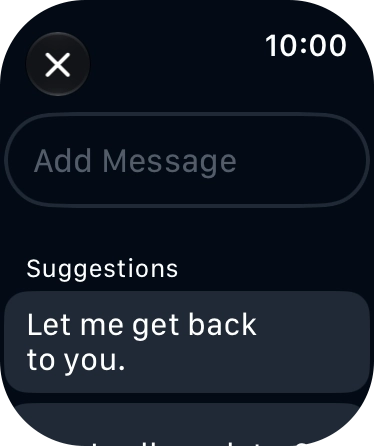
Press Add Message.
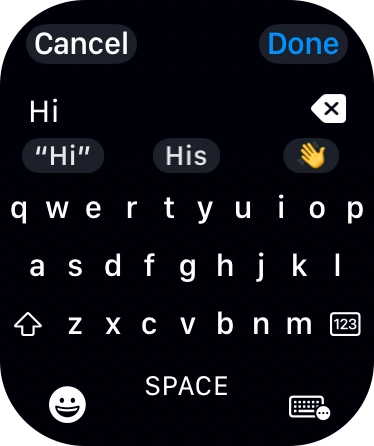
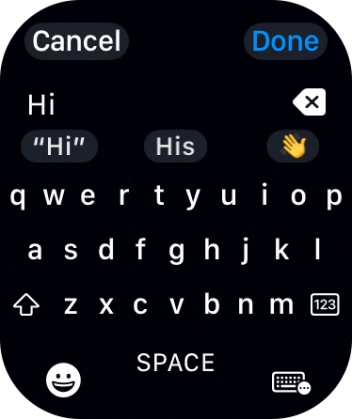
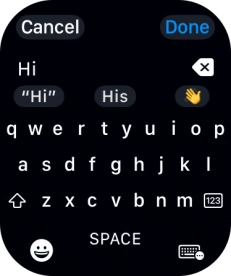
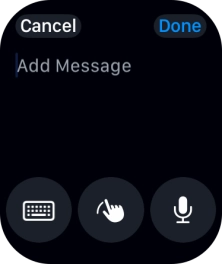
Reply to email message using voice input
Press the input icon.
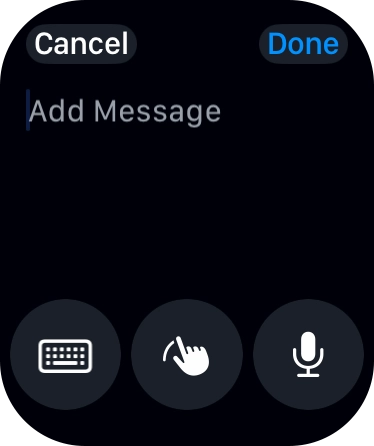
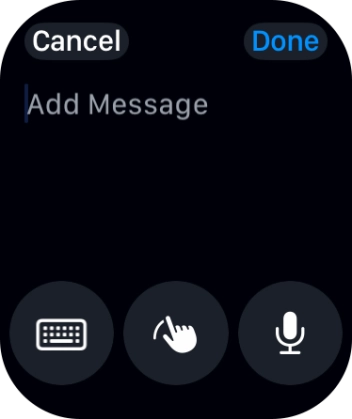
Reply to email message using voice input
Press the microphone icon and record the message.
Reply to email message using voice input
Press Done.
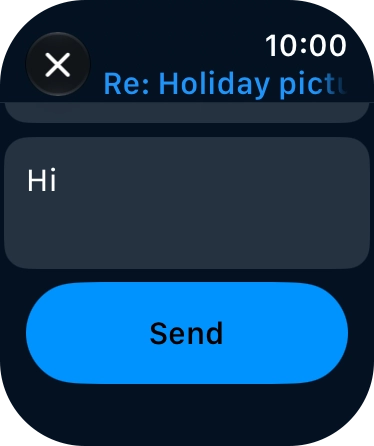
Reply to email message using voice input
Press Send.
Reply to email message using text input
Press Reply.
Reply to email message using text input
Press Add Message.
Reply to email message using text input
Press the input icon.
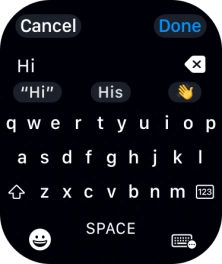
Reply to email message using text input
Press the keypad icon and key in the required text.
Reply to email message using text input
Press Done.
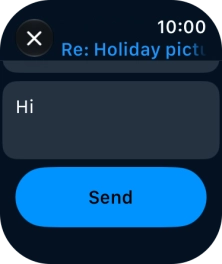
Reply to email message using text input
Press Send.
Reply to email message using quick reply
Press Reply.
Reply to email message using quick reply
Press the required quick reply.
Return to the home screen
Press the Digital Crown several times to return to standby mode.
1 Select email account
2 Read email message
3 Reply to email message using voice input
4 Reply to email message using text input
5 Reply to email message using quick reply
6 Return to the home screen