

Sony Xperia Arc

Sony Xperia Arc

Activate or deactivate data connections - Sony Xperia Arc

Read help info

You can deactivate data connections. Only text messages and calls are then available. This is useful if you want to avoid unintended data traffic. Follow these instructions to activate or deactivate data connections.

Press the menu icon.
Step 1 of 8

Find "Mobile networks"

Press the menu icon.
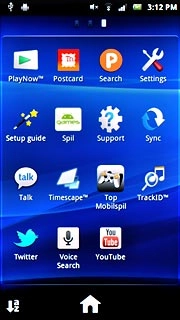
Press Settings.
Step 2 of 8

Find "Mobile networks"

Press Settings.
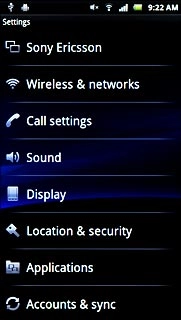
Press Wireless & networks.
Step 3 of 8

Find "Mobile networks"

Press Wireless & networks.
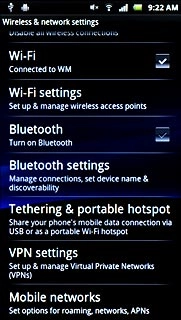
Press Mobile networks.
Step 4 of 8

Find "Mobile networks"

Press Mobile networks.
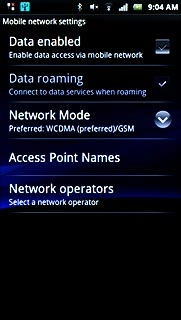
Press Data enabled to activate or deactivate data connections.
Step 5 of 8

Activate or deactivate data connections

Press Data enabled to activate or deactivate data connections.
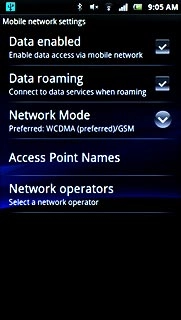
When the box next to the menu item is ticked (V), the function is turned on.
Step 6 of 8

Activate or deactivate data connections

When the box next to the menu item is ticked (V), the function is turned on.
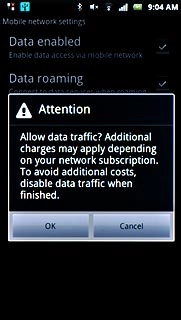
If you turn on the function:Press OK.
Step 7 of 8

Activate or deactivate data connections

If you turn on the function:
Press OK.

Press the Home key to return to standby mode.
Step 8 of 8

Exit

Press the Home key to return to standby mode.

Find "Mobile networks"

Press the menu icon.
Press Settings.
Press Wireless & networks.
Press Mobile networks.

Activate or deactivate data connections

Press Data enabled to activate or deactivate data connections.
When the box next to the menu item is ticked (V), the function is turned on.
If you turn on the function:
Press OK.

Exit

Press the Home key to return to standby mode.

Thank you for your evaluation!

Get information on...

Or select...

Another device