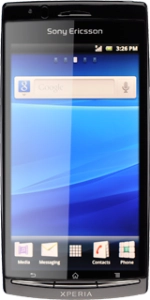
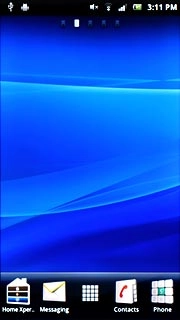
Turn on the video recorder
Press the menu icon.
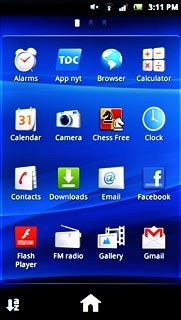
Turn on the video recorder
Press Camera.
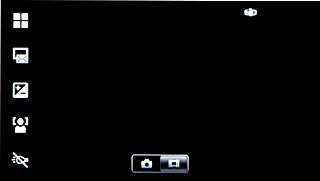
Turn on the video recorder
Press the video recorder icon.
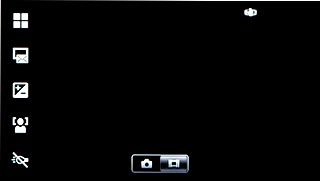
Record video clip
To turn on video light:
Press the video light icon.
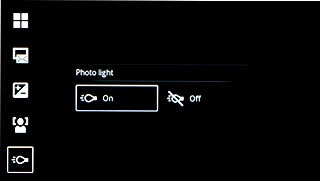
Record video clip
Press On.
Record video clip
Press the Camera key to start the video recorder.
Record video clip
Press the Camera key to stop the video recorder.
The video clip is automatically saved.
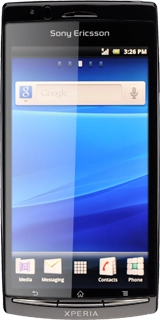
Choose option
You have a number of other options when recording video clips using your phone's video recorder.
Choose one of the following options:
Select video size, go to 3a.
Turn sound recording on or off, go to 3b.
Select scene mode, go to 3c.
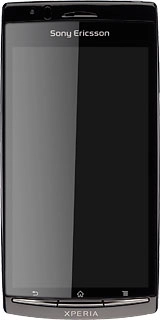
3a - Select video size
Press the Menu key.
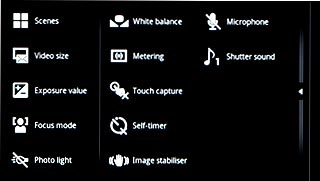
3a - Select video size
Press Video size.
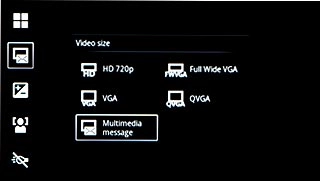
3a - Select video size
Press the required video size.
3b - Turn sound recording on or off
Press the Menu key.
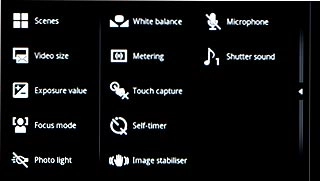
3b - Turn sound recording on or off
Press Microphone.
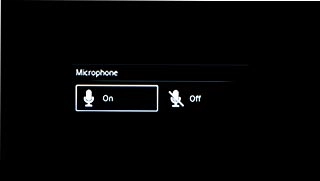
3b - Turn sound recording on or off
Press On or Off.
3c - Select scene mode
Press the Menu key.
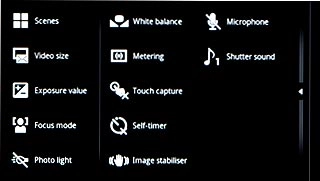
3c - Select scene mode
Press Scenes.
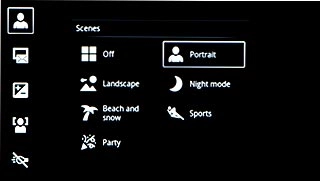
3c - Select scene mode
Press the required setting.
Exit
Press the Home key to return to standby mode.
Turn on the video recorder
Record video clip
Press the video light icon.
The video clip is automatically saved.
Choose option
Choose one of the following options:
Select video size, go to 3a.
Turn sound recording on or off, go to 3b.
Select scene mode, go to 3c.
3a - Select video size
3b - Turn sound recording on or off
3c - Select scene mode
Exit
Thank you for your evaluation!

Thank you for your evaluation!